
Digital student information management: one record from first inquiry to leaving
What a student record should hold at each stage, who should see which parts, and how to handle siblings, documents and sensitive details.
School management
Set up next year and its sections first. Then, for each section, SkoolBro suggests promoting every student, or graduating them in the last grade, and you change only the exceptions. The old year's places end with their outcome, new places start, and attendance, marks and fees stay with the year they belong to.

At the end of the school year most students move up a grade, a few repeat, the final class graduates and some families move away. On paper that means retyping every class list for the new year and hoping nobody is left out. In SkoolBro each section is moved into the next year from one page, and the old year's records stay where they are.
Promotion is for the School Admin and Principal roles by default. It counts as a sensitive action, so SkoolBro asks for your password again if you have not confirmed it recently.
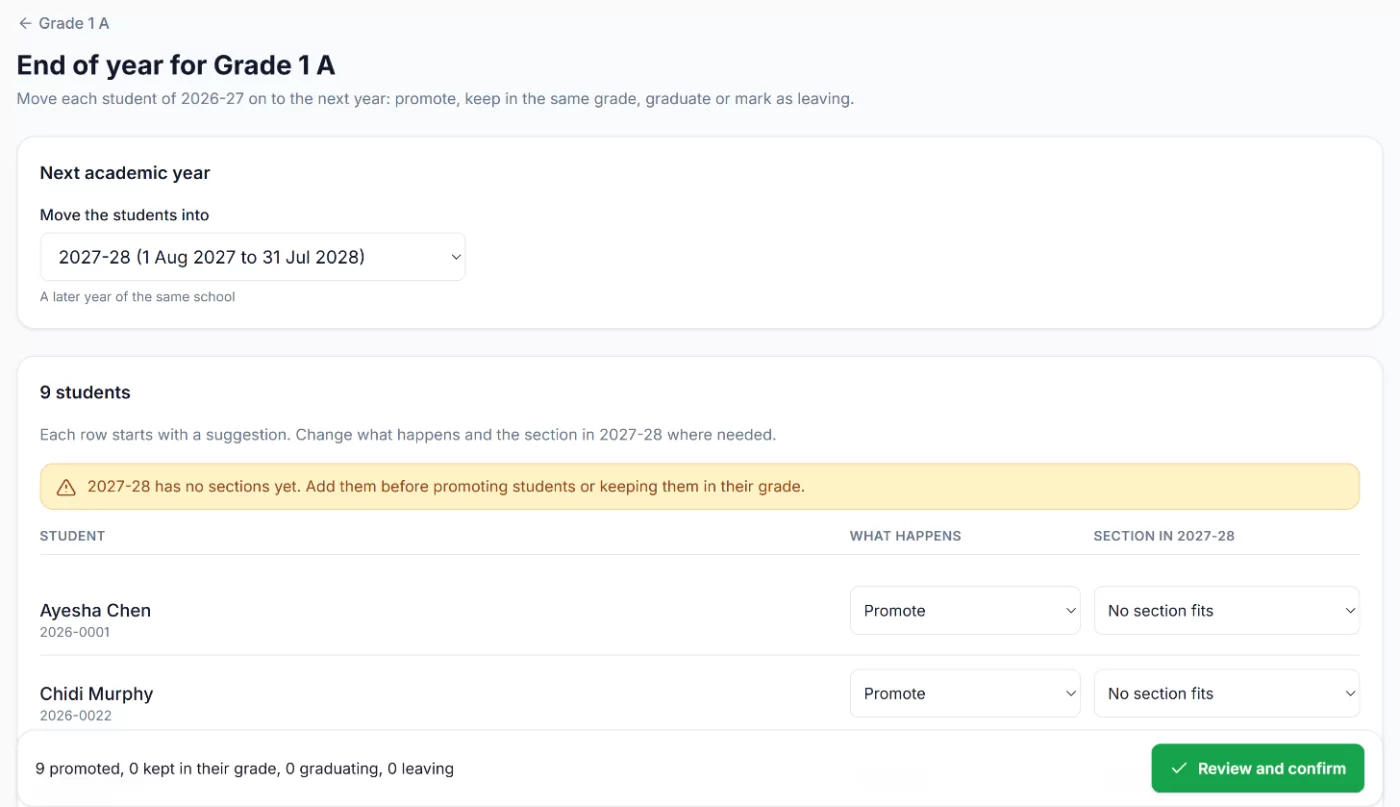
Students can only move into sections that exist, so the next year comes first.
If the next year has no sections yet, the promotion page says so and lets you only graduate students or mark them as leaving.
Open a section of the current year, for example Grade 5 A, and select Promote. The page is called "End of year for Grade 5 A". Under Move the students into, choose the next year. Only later years of the same school that are not closed are offered.
Each student starts with a suggestion: Promote to the next grade's section with the same name, such as Grade 6 A, or Graduate in the last grade. Change What happens where needed:
Section for everyone promoted sets one section for all promoted rows at once. Sections at the school's other campuses are listed too, with the campus name, and a student promoted into one of them moves to that campus.
Select Review and confirm. SkoolBro shows the counts, for example "26 promoted, 1 kept in their grade, 0 graduating, 1 leaving", and says how many students still need a section. The confirmation explains that places in the old year end, places in the new year are created, and students who graduate or leave get the status Graduated or Withdrawn. Select Confirm. The whole section is saved together, or nothing is saved if one row has a problem.
Repeat this for each section of the school.
At Maplewood School, a fictional school, Grade 5 A has 28 students. The principal, Ms Nakamura, opens its promotion page and chooses 2027-28. Every row starts as Promote to Grade 6 A. She changes Omar to Keep in the same grade, in Grade 5 B of the new year, and Sofia to Leaving, because her family is moving abroad. The result reads "26 promoted, 1 kept in the same grade, 0 graduated, 1 left." For Grade 10, the school's last grade, every row starts as Graduate.
Families who leave may ask for a leaving certificate; see issuing leaving and character certificates.
On the Years and terms tab, select Make current on the new year once it starts. After the old year's last day, select Close year on it. Its sections, class lists and attendance can no longer change, and a closed year cannot be opened again there. The Promote button does not appear in a closed year, so finish every section first.
New students for the new year are placed with Add students on a section, which lists the campus's active students without a section in that year.
Promotion runs one section at a time; there is no step for a whole grade or school. Sections, subject teachers and timetables are not copied into the new year, and fee structures are not copied either. SkoolBro does not suggest keeping students back from their results, and a finished promotion cannot be undone from the promotion page.
No. Every student starts with Promote, or Graduate in the last grade. The school decides who is kept back or leaving and changes those rows.
Open the class list of the section in the new year and use Move to put the student in another section of the same campus. The roll number is cleared when a student moves.
No. The status Graduated is final. A student marked as Leaving gets the status Withdrawn, which can be changed back to Active later; re-admission counts towards your plan's student limit.
No. The limit counts active and suspended students. Graduated and withdrawn students stay in the records without counting.
Not yet. Promotion runs one section at a time. Within a section, one step sets the next section for everyone promoted.
What a student record should hold at each stage, who should see which parts, and how to handle siblings, documents and sensitive details.

Start from the standard leaving, character and enrollment templates or write your own. SkoolBro fills in the student's details, numbers each certificate, prints it on an A4 page with a check code, and shows anyone with the code whether it is valid or revoked.

What happens after sign-up, how the Getting started list ticks itself off from your real records, and a day by day plan for your first week.