
Digital student information management: one record from first inquiry to leaving
What a student record should hold at each stage, who should see which parts, and how to handle siblings, documents and sensitive details.
Education administration
Start from the standard leaving, character and enrollment templates or write your own. SkoolBro fills in the student's details, numbers each certificate, prints it on an A4 page with a check code, and shows anyone with the code whether it is valid or revoked.

When a student leaves, someone in the office opens last year's leaving certificate in a word processor, types over the name, copies the date of birth from the admission file and hopes it is right. Months later another school or an employer calls to ask whether the certificate is genuine, and someone has to find the copy. In SkoolBro the certificate is filled in from the student's records, gets a number, and carries a code that anyone can check online.
Certificates is in the menu under Students and families. By default the School Admin role manages the templates, and the School Admin and Principal roles issue and revoke certificates. Revoking counts as a sensitive action, so SkoolBro asks for your password again if you have not confirmed it recently. An administrator can give these permissions to other roles under Roles.
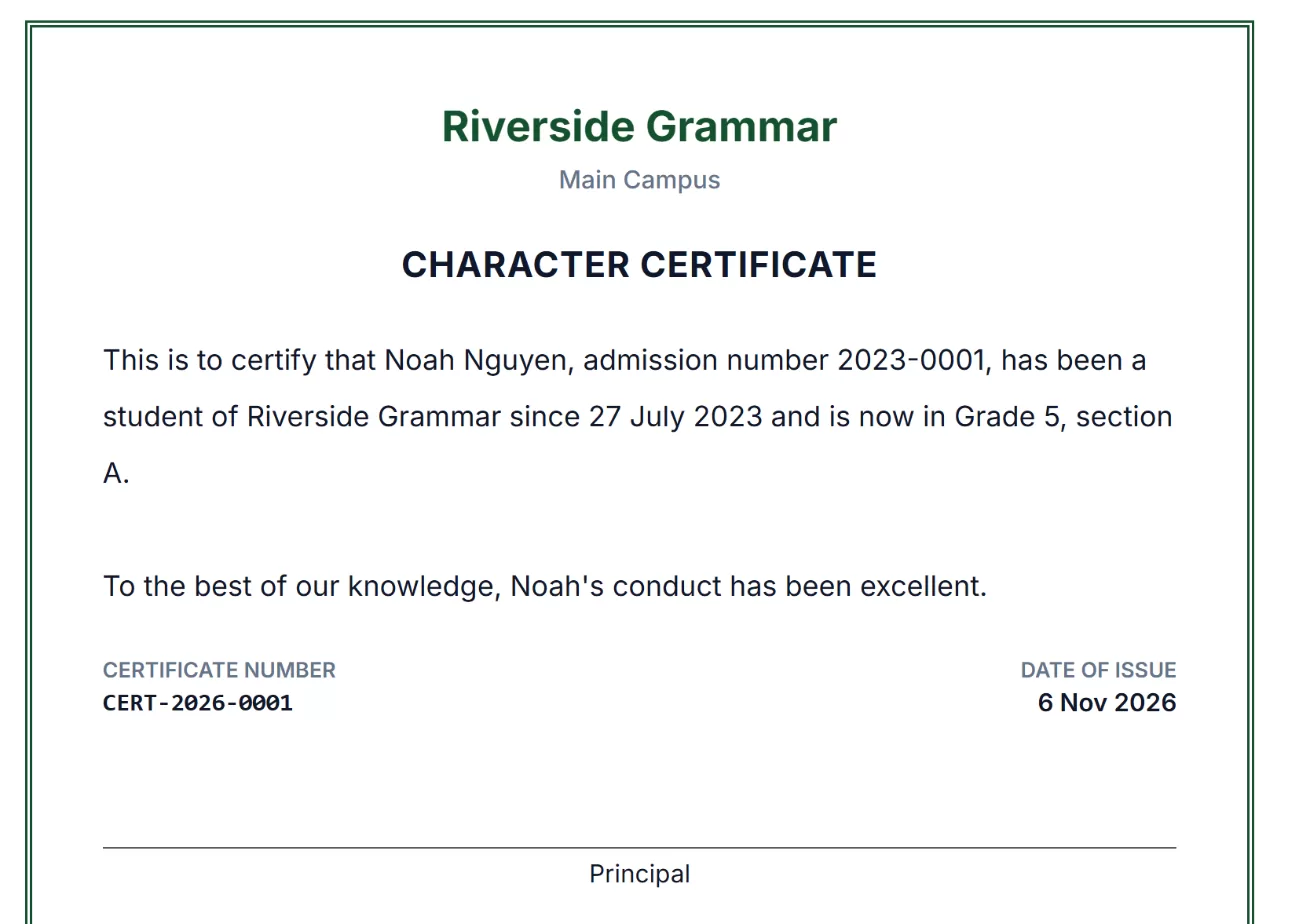
Open Certificates and go to the Templates tab. Add the standard templates creates three you can change: a school leaving certificate, a character certificate and an enrollment certificate. Write my own starts an empty one.
A template has:
Tap a placeholder to put it where the cursor is. Most are filled in from the records: the student's full name and first name, admission number, date of birth, main guardian, class and section, academic year, admission date, school and campus names, issue date and certificate number. Three are typed in when you issue: the leaving date, the reason for leaving and conduct. Dates are written out, such as 14 March 2015.
Use the kind Other for any certificate the school words itself, such as a certificate of attendance or, at a training institute, a course completion certificate.
Select Issue a certificate on the Certificates page, or on the Certificates tab of a student's profile. Choose the student and the template. Under Details, fill in what the wording asks for. The leaving date can stay empty to use the leaving date already on the student's record.
The Preview shows the finished wording. If a placeholder has no value, for example a missing date of birth, it says "Still missing" with the fields to fill in, and the certificate cannot be issued until they are. Select Issue certificate. Certificates are numbered in order for each school and year, such as CERT-2026-0001.
The certificate opens as an A4 page with your logo (when your organization has uploaded one), the school's name, the title, the wording, the certificate number, the date of issue, the signature lines to sign by hand and the template's seal. At the bottom it says where to check it: a QR code, and an address such as app.skoolbro.com/verify/your-organization/ followed by a 10-character code. Print it, or save it as a PDF from the print window.
A certificate keeps the seal it was issued with, so changing the seal later does not change certificates already given out.
Anyone with the address can open it, with no sign-in. The page says "This certificate is valid" or "This certificate was revoked", and shows the certificate's title and number, the student's name, the issue date, the school and the organization, with a note to compare these with the paper. Codes use letters and digits that are hard to mix up. A code from one organization never matches a certificate of another, and the check allows 30 lookups a minute from one address.
On the Issued tab, find the certificate by its number or code and select Revoke. Give a reason of at least 3 characters. The certificate stays in the records with who revoked it, when and why. Its print page shows a Revoked mark, and the online check shows it as revoked from then on.
Cedar Grove School, a fictional school, has a student, Daniel, whose family is moving to another country in June. The office records his status as Withdrawn with a leaving date of 28 June. The principal, Mrs Ochieng, opens Daniel's profile, goes to Certificates and selects Issue a certificate with the school leaving template. The leaving date comes from his record. She types "Moving to another country" as the reason and "Good" for conduct, checks the preview and issues CERT-2026-0014. In September, his new school types the address and code from the paper and sees that the certificate is valid, with his name and the issue date.
For students who finish the year and move on, see promoting students at the end of the year, which also records graduation and leaving.
There are no digital signatures; certificates are signed by hand. Families cannot see or download certificates in the portal. Certificates are issued one student at a time, and only for students, so there is no staff experience certificate.
No. Each issued certificate keeps its own copy of the title, wording and signature lines. A changed template is used only for certificates issued after the change.
They scan the QR code on the certificate, or type the address printed under it, which ends with the 10-character code. The page needs no sign-in and shows whether the certificate is valid or revoked, with its number, title, the student's name, the issue date and the school.
No. Issued certificates stay in the records. Revoke it with a reason, and the online check then shows it as revoked. Then issue a correct one, which gets the next number.
The School Admin and Principal roles by default. Only the School Admin manages templates. An administrator can give these permissions to other roles under Roles.
What a student record should hold at each stage, who should see which parts, and how to handle siblings, documents and sensitive details.

Set up next year and its sections first. Then, for each section, SkoolBro suggests promoting every student, or graduating them in the last grade, and you change only the exceptions. The old year's places end with their outcome, new places start, and attendance, marks and fees stay with the year they belong to.

A week-by-week plan for one term: what to move first, how to bring staff along, and what can wait until next term.