
How to simplify school fee collection: a guide for bursars and accounts offices
Fee heads and structures, vouchers and receipts, concessions that need a second approval, opening balances and a month-end routine for the person who runs school fees.
AI in education
Once a week the AI fee collection agent picks the families with overdue fees and drafts one polite reminder. SkoolBro fills in each child's amount, invoices and due date, and nothing goes out until someone with permission checks the batch and approves it.

Most school offices know which families are behind on fees. The slow part is writing to them: going through the defaulters list, typing each child's amount and invoice numbers, and making sure nobody gets a reminder for a fee paid that morning. The AI fee collection agent drafts that batch, and a person in your office reads it and decides whether it goes out.
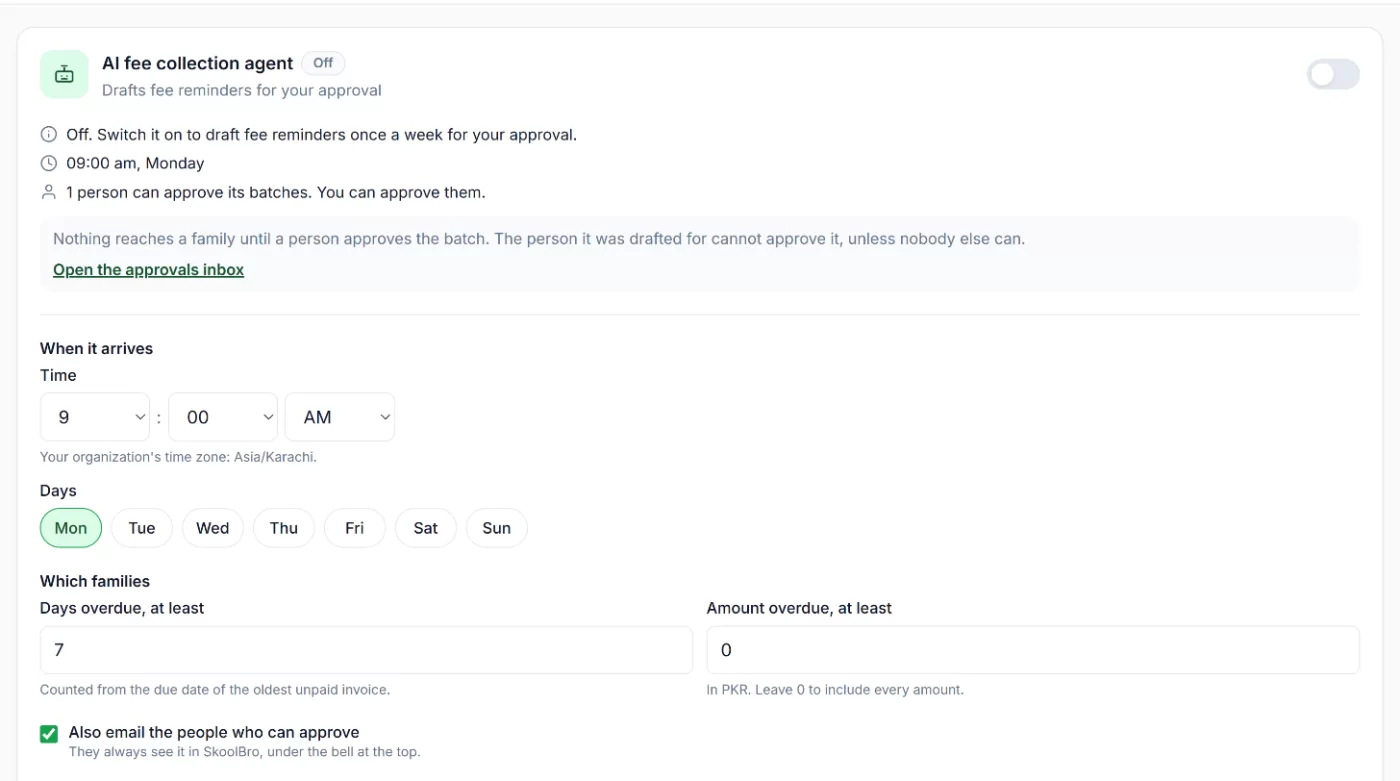
Open AI agents in the sidebar and find the AI fee collection agent. By default the owner and School Admins can switch agents on. Switching asks for a recent password confirmation, and your account needs a verified email address or phone number. The agent acts for the person who switched it on and sees only the fees and campuses they can see. If that person leaves or can no longer see fees, the agent pauses and the card says why.
Under Which families you set Days overdue, at least (7 by default, from 0 to 365, counted from the due date of the oldest unpaid invoice), Amount overdue, at least in your currency (0 includes every amount) and Campuses (none chosen means every campus the agent can see). You can also change the day and time, and tick Also email the people who can approve. A batch holds up to 1,000 families, and any more wait for the next one. Reminders go out on the channels switched on for "Fee reminder" in Automatic messages.
When a batch is ready, the people who may approve it get a notice under the bell. By default these are the owner, School Admins and Accountants, who hold the permission "Approve and send fee reminders to families". An accountant with no other AI access opens the batch from that notice, because the Messages to approve entry in the sidebar shows only for people who also use AI.
The batch page shows how many families it covers, the total, the channels, and which families were left out and why. You can change the wording under The message as long as {student_name} and {amount} stay, and How it reads for three families shows it with today's details. Then select Approve and send, or Reject with an optional note. Both ask for a recent password confirmation.
The person the batch was drafted for cannot approve it unless nobody else in the organization can, and in that case the history records that one person decided. A batch nobody decides expires after three days, and a newer batch replaces one still waiting, so no family gets two reminders.
At approval SkoolBro reads every family's invoices again. Families who paid since drop out, and so does any invoice that changed in another way, such as a waiver, a late fine or a new due date. Students who left, families nobody can reach now and families in campuses you cannot see drop out too. The amounts, invoice numbers and due dates in the reminders come from the invoices that are left, and the result says how many families got one and why the others were skipped.
On the Fees page, people who manage AI agents see Draft reminders with AI above the Defaulters list. It opens the AI agents page, where Draft reminders now drafts a batch straight away. That batch uses one AI credit and waits for approval like a scheduled one.
The model gets the rules, the placeholders with what each one stands for, and an example of the tone. It never gets a name, amount, date, invoice number, school name or count from the batch. It is asked for three to five short, polite sentences that thank the family, say they can ignore the message if they have already paid, and say that the school office can help with questions. It is told never to threaten anyone or mention fines, penalties or consequences for the child. SkoolBro's AI agents use Google's Gemini, and the privacy policy explains how the data is handled.
Bayside School is a fictional school with two campuses. The owner, Mr Lindqvist, switches the agent on with 14 days overdue and every campus. On Monday morning a batch of 38 reminders is ready, and Mrs Adeyemi, the accountant, gets the notice. She adds the office's opening hours to the last sentence and reads the three previews. By the time she selects Approve and send at 11:00, two families have paid at the front desk, so SkoolBro leaves them out and 36 reminders go out by email and as a notice in the family portal.
Each batch uses one AI credit and one place in your organization's daily AI limit. A run with no family to remind uses none, so a weekly batch costs four or five credits a month. AI agents come with the Growth plan (1,000 AI credits a month) and above. The Starter plan has no AI credits.
On the Defaulters tab of Fees, Send reminders sends the school's standard wording instead, with no AI credit used. You see the families, the total and an example first, can change the wording, and SkoolBro checks each family again just before sending, as it does when you approve a batch. A child who had a reminder in the last 7 days, from either way, is left out; each school can change that number or switch this off in the fee settings. The fee settings guide has the details.
No. The model writes one reminder with placeholders such as {student_name} and {amount}. SkoolBro fills in each child's name, the amount, the invoice numbers and the due date from your invoices when the batch is approved.
SkoolBro checks every family again at approval. A family whose invoices were all paid since drops out, and so does any invoice that changed in another way, so nobody gets a reminder with an amount the approver did not see.
Anyone who holds the permission to approve and send fee reminders. By default that is the owner, School Admins and Accountants. The person a batch was drafted for can approve it only when nobody else in the organization can.
Growth or above, because AI agents use AI credits and the Starter plan has none. The 14-day free trial runs on the Growth plan, so you can try the agent before you choose a plan.
Not yet. Reminders go by email and as a notice in the family portal. Automatic messages has switches for SMS and WhatsApp, but no provider is connected yet.
Fee heads and structures, vouchers and receipts, concessions that need a second approval, opening balances and a month-end routine for the person who runs school fees.

Monthly fees take more of a tuition owner's time than they should. Written rules, one billing day and a fixed follow-up routine sort out most of it.

A plain explanation of the AI workforce idea: what the SkoolBro assistant and AI agents do today, and where people stay in charge.