
How to simplify school fee collection: a guide for bursars and accounts offices
Fee heads and structures, vouchers and receipts, concessions that need a second approval, opening balances and a month-end routine for the person who runs school fees.
School management
Each school has its own fee settings: the day monthly invoices are due, a late fine and the grace days before it can be added, and the bank details printed on vouchers. The office adds late fines to overdue invoices, follows up from the Defaulters list, and every concession, waiver or refund waits in Fee approvals for a second person.

Families often ask why a late fine was charged, and now and then a principal wants to forgive one without anyone deleting it from the records. In SkoolBro each school writes its rule down once, the fine is added the same way to every overdue invoice, and taking one off needs a second person.
Open Fees and select Fee setup, then the Settings tab. You can also reach it from School details, where the Rules in each area card links to each area's settings. Each school in an organization has its own settings. By default the School Admin and the Accountant change them and add fines.
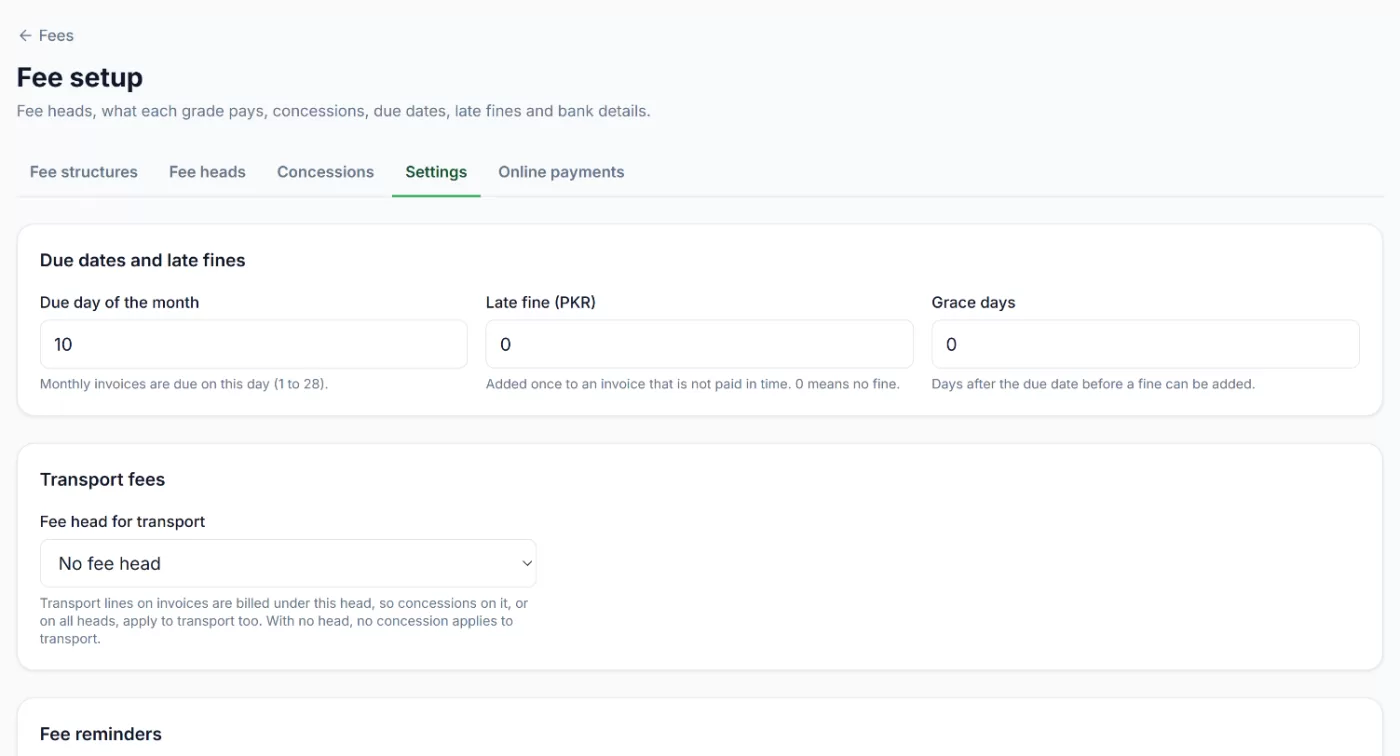
Under Due dates and late fines, set Due day of the month, from 1 to 28. Monthly invoices are due on that day of their month; the day is 10 unless you change it. When you generate a month's invoices you can type a different due date for that batch, for example after a holiday. One-off invoices, for a trip or a uniform, get their own due date when you make them.
This is how the fine is worked out. When the office selects Apply late fines, SkoolBro takes every invoice of the school that is unpaid or part paid and more than the grace days past its due date, and adds one late fine line for the fixed amount to each one that has no fine yet. The fine adds to the invoice total, shows on the voucher and in the family portal, and is posted to Late fine income in Accounts.
On the Invoices tab of Fees, select Apply late fines. The dialog repeats the rule with your amount and grace days, so you can check it before anything changes. Select Apply fines, and SkoolBro says how many invoices got one. If the settings have no late fine yet, the dialog says so and points you to the Settings tab.
Here is an example from Harbour View School, a fictional school. Monthly fees are due on the 10th, the late fine is 500 in the school's currency, and there are 5 grace days. On Monday 16 November, Kenji Watanabe in the fee office selects Apply late fines. Every November invoice still open gets a 500 fine, along with any older open invoice that was never fined. Invoices paid in full are left alone. When Kenji applies fines again the next month, the November invoices that already have a fine are skipped. Had he tried on 15 November, the November invoices would not have been fined yet, since they were only 5 days late.
Under Bank details for vouchers, fill in Bank, Account title, Account number, IBAN or other code (IBAN, SWIFT, routing or sort code, whatever families need) and Payment instructions, for example where to pay in cash. These print on every fee voucher.
Receipts need no setup. Every payment gets a receipt numbered in order for each school and year, such as RCPT-2026-00001. Print receipt gives a page to print or save as a PDF, and the family gets the Payment received message with the amount and receipt number, by email and in the app unless your school changes that under Automatic messages. Online payments get a receipt too, once your school's own payment account is switched on, as the online payments guide explains.
The Defaulters tab of Fees lists every student with a balance past its due date, most overdue first, with the admission number, class, overdue amount, number of invoices, oldest due date and days overdue. A line at the top says how many students owe how much past the due date. Use Overdue for to see Any time, or only students more than 30, 60 or 90 days behind, and the school and campus filters to look at one campus. Download CSV saves the list for a meeting or a call list.
An invoice joins the list as soon as its due date passes, whether or not the grace days are over. There are two ways to remind families:
Both need the permission to send fee reminders, which School Admins and Accountants have by default. Under Fee reminders in the fee settings, a school can switch off the first way, and set how many days pass before the same child gets another reminder (7 unless you change it).
Concessions are planned reductions, such as a sibling or staff child discount. Add them on the Concessions tab of Fee setup, each as a Percentage or a Fixed amount, on one fee head or on all of them. To give one to a student, open the student's Fees tab, select Request concession, choose it and write the reason. Once someone else approves it, it applies from the next invoice. Revoke stops it from the next invoice, and invoices already issued stay as they are. Concessions apply to fee heads. To let them reduce transport fees too, choose a head under Transport fees in the fee settings; transport is then billed under that head.
On an invoice, Request waiver lowers what it asks for, up to its balance, and Request refund records money paid back on one of its payments and reopens that amount on the invoice. Both need a reason and go to Fee approvals, which the Fees page shows with a count when something is waiting. Fee approvals has two lists, concessions and waivers and refunds. The approver selects Approve or Reject, with an optional note. Approving is marked sensitive, so SkoolBro asks for the password again when it was not confirmed recently. Approved waivers and refunds post to the books.
Late fines are not added on a schedule; someone applies them. A fine per day, a percentage fine, a cap, or different fines per grade or fee head are not built. Families get no separate message when a fine is added, though they see it on the invoice in the portal. Separate instalment schedules are not built either: a family can pay an invoice in parts, and each part gets its own receipt.
No. Someone who manages invoices selects "Apply late fines" on the Invoices tab. SkoolBro then adds the fine once to each open invoice that is more than the grace days past its due date.
Not yet. The late fine is one fixed amount, added once to each invoice. A fine per day, a percentage of the balance or a different fine per grade is not built.
Yes. Open the invoice, select "Request waiver" for the fine amount and write the reason. Someone else approves it in Fee approvals, and the invoice then asks for that much less.
The days since the due date of the student's oldest invoice that is still not fully paid. The list counts from the due date itself, so grace days do not change it.
By default the School Admin and the Principal. Never the person who asked for it: they see "You asked for this, so someone else has to approve or reject it."
Fee heads and structures, vouchers and receipts, concessions that need a second approval, opening balances and a month-end routine for the person who runs school fees.

Once a week the AI fee collection agent picks the families with overdue fees and drafts one polite reminder. SkoolBro fills in each child's amount, invoices and due date, and nothing goes out until someone with permission checks the batch and approves it.

Each school has its own chart of accounts. Fee invoices, payments, fines, waivers, refunds and payroll post to the books by themselves, and the office records expenses with the payee and whether they were paid from cash or bank. Manual journal entries cover the rest, and the trial balance, income and expenditure, and balance sheet are ready to print.