School accounts in SkoolBro: chart of accounts, expenses and statements
Each school has its own chart of accounts. Fee invoices, payments, fines, waivers, refunds and payroll post to the books by themselves, and the office records expenses with the payee and whether they were paid from cash or bank. Manual journal entries cover the rest, and the trial balance, income and expenditure, and balance sheet are ready to print.
· 4 min read
A school's fee office and its books often live in two places: fee records in one system and a ledger in a spreadsheet that someone updates at the end of the month. SkoolBro keeps both in one place. Fees and payroll post to the books as they happen, so the bursar records the money that goes out and reads the statements.
Who sees what
Accounts sits under Finance in the menu, next to Fees. By default the School Admin, the Principal and the Accountant can see the books, and the School Admin and the Accountant add accounts, record expenses and post journal entries. Manual journal entries are marked sensitive, so SkoolBro asks for your password again when you have not confirmed it recently. The page has four tabs: Chart of accounts, Journal, Expenses and Reports. If your organization has several schools, choose the school at the top.
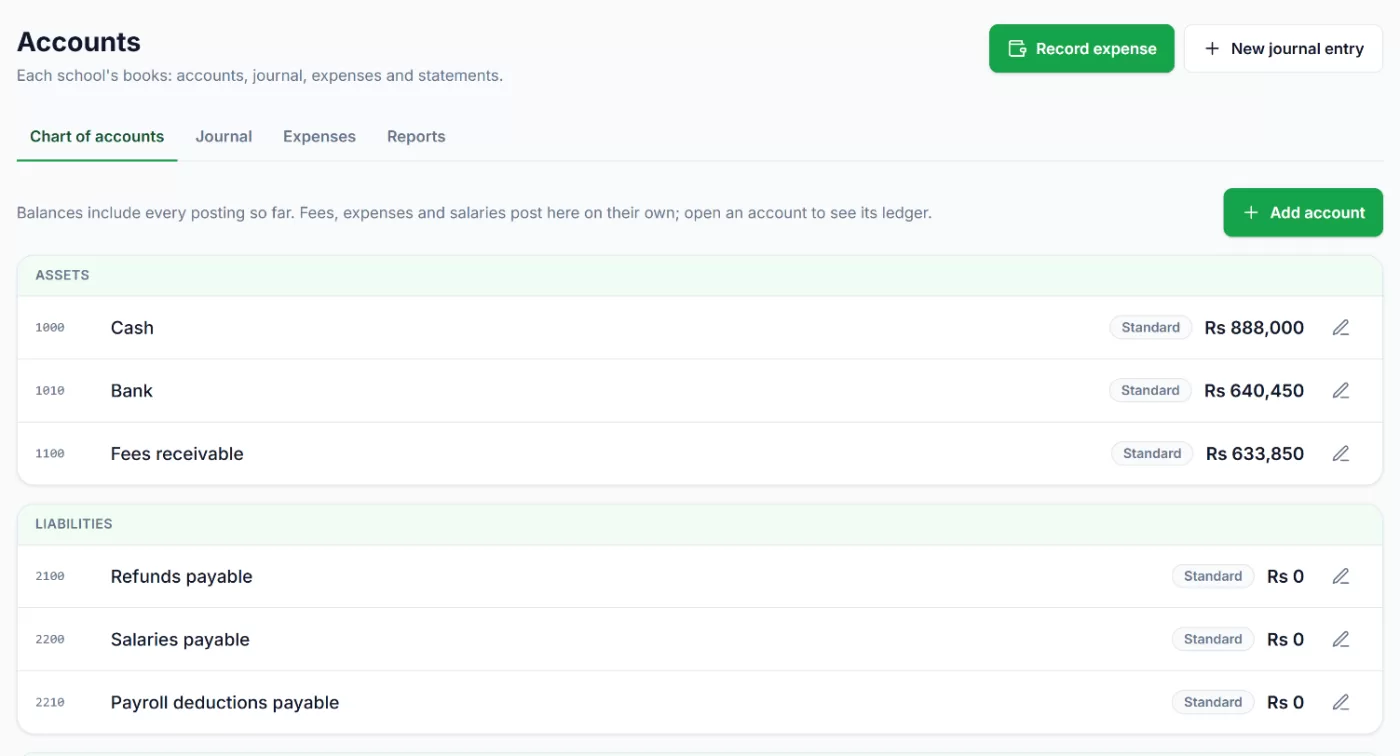
The chart of accounts, with the balance of each account.
The chart of accounts
The first time a school's books are used, SkoolBro adds the standard accounts that fees, expenses and payroll post to: Cash, Bank, Fees receivable, Refunds payable, Salaries payable, Payroll deductions payable, Opening balances, Fee income, Late fine income, Concessions given, Fee waivers, General expenses and Salaries. You can rename a standard account, but its code and type stay as they are.
Select Add account to add your own, with a Code, a Name and a Type (assets, liabilities, equity, income or expenses), for example Utilities, Rent or Stationery. An account that has postings cannot be deleted. Open any account to see its ledger, with an opening balance, every line in the dates you choose, a running balance and a closing balance.
How fees and payroll reach the books
Invoice issued: Fees receivable goes up, with Fee income for the fee lines, Late fine income for fine lines and Opening balances for balances brought in. Concessions on the invoice go to Concessions given.
Late fine added: Fees receivable and Late fine income.
Payment recorded: Cash for cash payments, Bank for every other method, and Fees receivable goes down.
Waiver approved: Fee waivers, and Fees receivable goes down. Refund approved: Fees receivable, paid out of Cash or Bank by the payment's method.
Payroll approved: Salaries, with the net pay owed to staff in Salaries payable and the deductions in Payroll deductions payable. Payroll paid: Salaries payable goes down, paid out of Bank or Cash.
Select Record expense and fill in the campus, the date, the Expense account, Paid to (a person or a company), the amount, Paid from (Cash or Bank) and an optional reference and note. Saving posts the expense against cash or bank straight away. A mistake is undone with Void and a reason: SkoolBro posts the reversal, and the expense stays in the list marked void. The Expenses tab filters by campus, account and dates.
Record as expense, from Inventory
When someone records stock coming in with a Cost per unit in Inventory, and they can also record expenses, SkoolBro asks whether to record what was paid as an expense. Record as expense opens the expense form in Accounts with the supplier as the payee, the total (quantity times cost per unit), the date, the reference, and the item and quantity as the note. You choose the expense account and whether it was paid from cash or bank, check the rest and save. Not now closes the question, and nothing is posted.
Here is an example from Cedar Grove School, a fictional school. Aisha Bello, the bursar, records 40 reams of copy paper received at the main store from Kestrel Stationers at 450 each in the school's currency, with the bill number as the reference. She selects Record as expense, sees 18,000 payable to Kestrel Stationers, picks the Stationery account she added and Bank, and saves.
Journal entries
For anything fees and expenses do not cover, such as opening balances, a donation or a correction, select New journal entry. Enter the date and a Description, then the lines, each with an account and a debit or a credit. The form shows the debits, the credits and the difference as you type, and Post entry works only when they are equal. Entries are numbered in order for each school and year. To undo one, open it and select Reverse: an opposite entry is posted and linked to it, and the original stays in the journal. The Journal tab filters by dates and by source, such as fee payments, expenses, salaries, salaries paid or manual entries.
Reports
The Reports tab has three statements:
Trial balance as of a date, with every account's debit or credit and the two totals,
Income and expenditure between two dates, with the surplus or deficit,
Balance sheet as of a date: assets against liabilities, equity and the surplus to date.
Each one prints, and the browser can save it as a PDF. For billed and collected fees by month, see Reports.
What is not built yet
There is no bank reconciliation or bank statement import. Bills to pay later are not tracked: an expense is recorded as paid from cash or bank. There are no budgets, no VAT or tax handling, and no CSV download of the statements, which print only. Stock coming in is never posted on its own; it reaches the books only when someone saves the expense.
Questions
Do we post fee income by hand?
No. When an invoice is issued, a payment is recorded, a late fine is added, or a waiver or refund is approved, SkoolBro posts the matching entry to the school's books. Voiding an invoice or a payment posts the reversal.
Can we record stock purchases as expenses?
Yes. After you record stock coming in with a cost per unit in Inventory, people who can record expenses are offered "Record as expense". It opens the expense form with the supplier and the total filled in, and nothing is recorded until you check it and save.
How do we fix a wrong entry?
Posted entries never change. Reverse the journal entry, or void the expense with a reason, and SkoolBro posts the opposite entry linked to the first. Then record the right one.
Does SkoolBro handle VAT or file tax returns?
No. SkoolBro keeps the books and the statements. Tax and filing stay with your accountant or adviser, who can work from the printed statements.
Does each school keep its own books?
Yes. Each school in an organization has its own chart of accounts, journal and statements, all in your organization's currency. Expenses are recorded for a campus of that school.
Each school has its own fee settings: the day monthly invoices are due, a late fine and the grace days before it can be added, and the bank details printed on vouchers. The office adds late fines to overdue invoices, follows up from the Defaulters list, and every concession, waiver or refund waits in Fee approvals for a second person.
Add your items and the places they are kept, then record stock in with its cost and supplier, stock out and transfers. Counts set the real quantity, low stock shows on its own, and stock bought with a cost can be recorded as an expense in Accounts with the supplier and total filled in.
Fee heads and structures, vouchers and receipts, concessions that need a second approval, opening balances and a month-end routine for the person who runs school fees.