How to keep track of school stock: items, store rooms and counts
Add your items and the places they are kept, then record stock in with its cost and supplier, stock out and transfers. Counts set the real quantity, low stock shows on its own, and stock bought with a cost can be recorded as an expense in Accounts with the supplier and total filled in.
· 4 min read
Paper, printer ink, science lab supplies, sports kit and cleaning materials all come through the store room. The register on the store room door says what came in, but not always what went out, and the first sign that paper has run out is a teacher who cannot print the test. SkoolBro keeps each item's stock per location, so you can see what is left, where it is, and what needs ordering.
Who does what
Inventory is in the menu under Operations. The School Admin, Principal and Accountant roles can see stock. By default only the School Admin adds items and records movements. If a store keeper or bursar does this work, an administrator can give them those permissions under Roles.
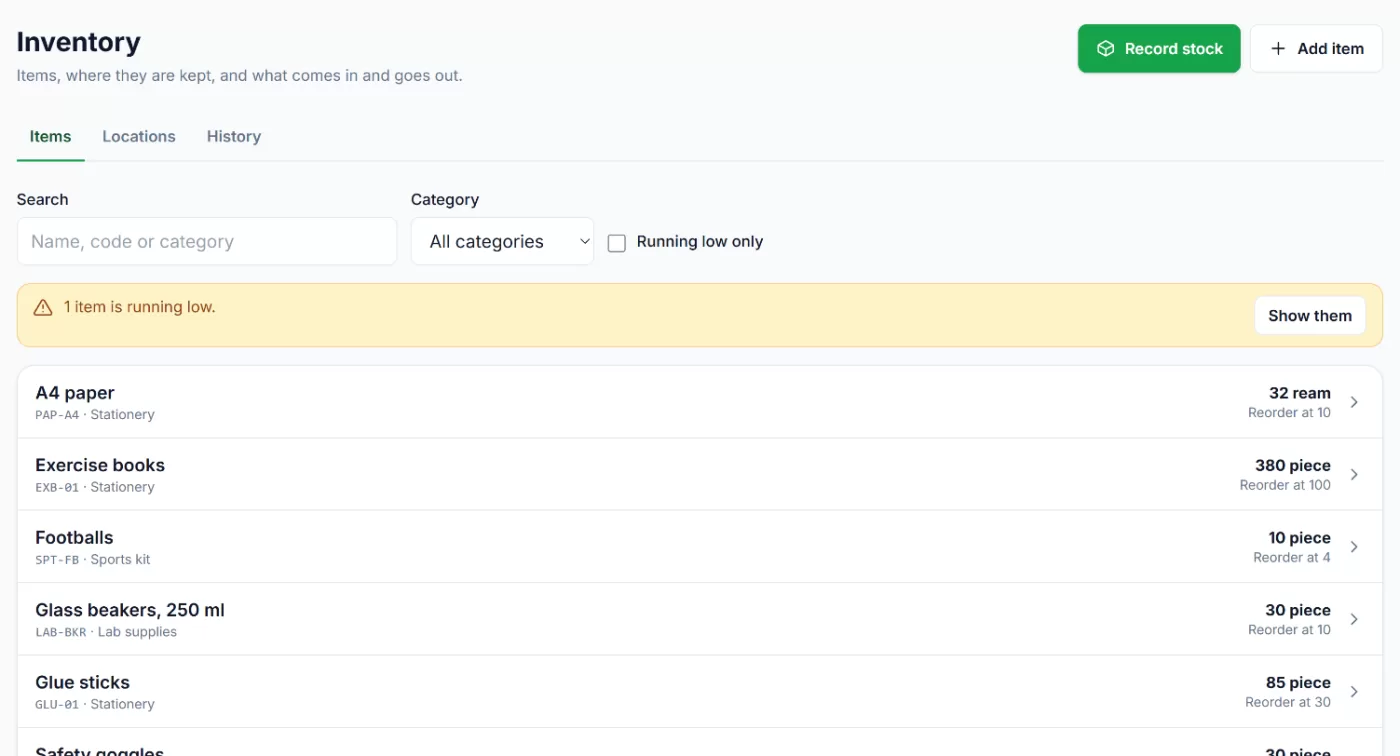
Inventory items with their stock and reorder levels.
Step 1: add your locations
Open Inventory and go to the Locations tab. Locations are the store rooms, cupboards and labs at each campus where stock is kept. Select Add location and give it a name, such as Main store or Chemistry lab. Each name is unique at its campus.
Step 2: add your items
On the Items tab, select Add item and fill in:
Name, for example A4 paper,
Code, short and unique in the school, for example PAP-A4,
Category, for example Stationery,
Unit, how you count it: piece, box, ream, litre,
Reorder level, the quantity at which the item shows as low. Leave it empty for none.
Step 3: record stock that comes in
Select Record stock and choose Stock in under What happened. Choose the item, where it was Received at, the quantity and the date. Quantities can have up to two decimals, and dates cannot be in the future. Add the Supplier, the Cost per unit and a Reference such as the bill number if you have them.
Step 4: record the bill as an expense
When stock comes in with a cost, and you are allowed to record expenses in Accounts, SkoolBro asks whether to record what you paid as an expense. Record as expense opens the expense form in Accounts with the supplier under Paid to, the total (quantity times cost per unit), the date, the reference and a note naming the item and quantity. Choose the Expense account and whether it was Paid from cash or bank, check the amount against the bill and save.
Not now closes the question. Inventory never posts to the books on its own, so a delivery you have not paid for yet stays out of the accounts until you record it. More on expenses is in school accounts and expenses.
Step 5: record stock out and transfers
Choose Stock out when stock is used or handed out. Pick the location it came From and, under Given to, who or what it went to, for example Science lab. Choose Transfer to move stock from one location to another. A location never goes below zero: if you try to take out more than it holds, SkoolBro says how much is left there.
Step 6: count the stock
On the Locations tab, select Count stock for a location. The count page works on a phone. Set the date, add a note such as "End of term count", and type what is on the shelf for each item. Leave a box empty to skip an item. As a guide, each item shows its quantity across all locations.
Save count sets each counted item to the number you typed and records the difference as a count adjustment, negative when stock is missing. If everything matched, nothing changes.
An example
Sunrise Primary School, a fictional school, receives 40 reams of A4 paper at the Main store from Greenleaf Stationers, at 4.50 a ream in the school's currency. Ms Rahman, the bursar, records the stock in, then selects Record as expense. The form opens with Greenleaf Stationers, 180.00 and the note "A4 paper: 40 ream". She chooses Bank and saves.
During the term she transfers 10 reams to the staff room cupboard, teachers take 6 of them, and the exam office takes 6 from the Main store. At the end of term the Main store should have 24 reams, but the count finds 23, so SkoolBro records an adjustment of minus 1. With 23 in the Main store and 4 in the staff room, the 27 reams on hand are under the reorder level of 30, so A4 paper shows as Low.
Seeing what is low and what happened
On the Items tab, each item shows what is on hand and a Low or Out of stock mark. Running low only filters the list. The History tab lists every movement, newest first, with filters by type and location, and an item's own page shows how much is at each location. Items running low also appear on the Reports page under the school at a glance, and school heads can get them in the AI morning summary.
Items and locations that have stock records cannot be deleted. Turn them off instead, and they take no new movements.
What is not built yet
There are no purchase orders or approvals for buying, and suppliers are typed as text, without a supplier list. SkoolBro does not scan barcodes for items and has no stock value report. No message is sent when an item runs low; it shows in the lists, on Reports and in the morning summary.
Questions
Does recording stock in also record the cost in the accounts?
Not by itself. After stock comes in with a cost, SkoolBro offers Record as expense, which opens the expense form in Accounts with the supplier and total filled in. Nothing is recorded in the books until you check the form and save it.
Can I change a stock movement I typed wrongly?
No. Movements are never edited or deleted, so the history stays true. Correct a mistake with another movement, or count the location and let SkoolBro record the difference.
Can stock go below zero?
No. If you try to take out more than a location has, SkoolBro refuses and says how much is left there.
Can I delete an item we no longer use?
Only if no stock was ever recorded for it. Otherwise turn it off: it then takes no new movements and its history stays.
Each school has its own chart of accounts. Fee invoices, payments, fines, waivers, refunds and payroll post to the books by themselves, and the office records expenses with the payee and whether they were paid from cash or bank. Manual journal entries cover the rest, and the trial balance, income and expenditure, and balance sheet are ready to print.
What the office of any institution should check each day, week and month, who should own each item, and where to find the answer without asking around.
The AI administrator writes a short summary from your own records on school mornings and ends it with a "Needs attention today" list. You choose the time, the days, the parts, who receives it and the mark for a low attendance day.