
Digital school attendance and exams, from the morning register to report cards
A practical walk through daily registers, same-day absence follow-up, marks entry, locking, publishing results and printing report cards.
School management
The Reports page gathers counts and totals from each part of SkoolBro you can see, with attendance, fees and enrollment tabs and CSV downloads. Each exam has its own analysis by subject and section, and people who may use AI agents can ask one to explain what the numbers show.

Heads of school tend to ask the office the same questions every week: how attendance has been, how much of this month's fees came in, how many students each grade has. The answers usually come from several spreadsheets that are a few days old. In SkoolBro the Reports page in the main menu works them out from the records you already keep.
The page has up to four tabs, and each person sees only the ones they have access to:
If your organization has several schools or campuses, pickers at the top narrow every report to one of them.
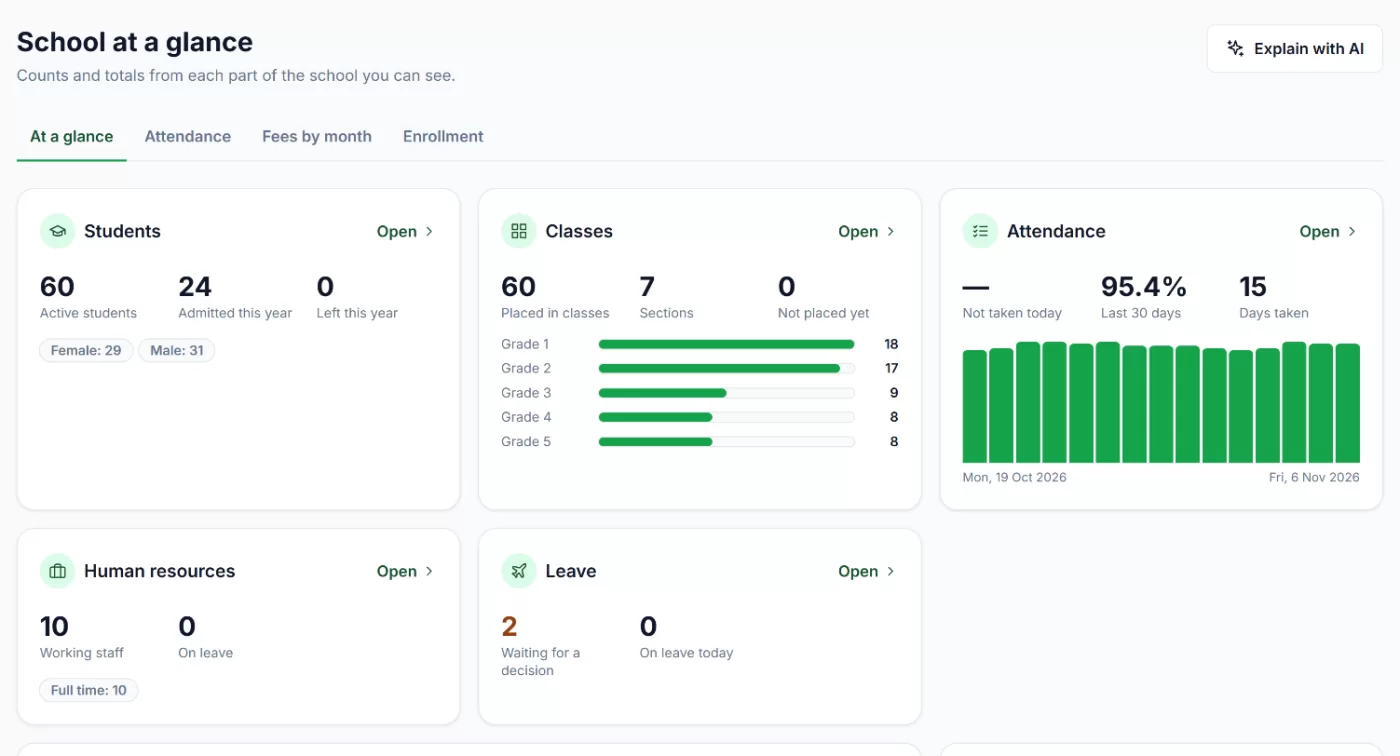
This tab, titled School at a glance, gives counts and totals, never names. Each part shows only when you can see that area of SkoolBro:
Each part has an Open link to the area it comes from.
Choose a date range, and a grade if you want one. The report has two tables, By day and By grade, each with marked, present, absent, late, excused and the rate. The rate counts present and late students over everyone marked, and days when attendance was not taken are left out. A range can cover up to a year. Each table has Download CSV.
Choose a range of up to 24 months. For each month the report shows what was billed, the number of invoices, what was collected and the number of payments. Billed counts invoices issued in the month, without void ones. Collected counts payments received in the month, less refunds. Under the totals, a line such as "Collected is 85% of billed in these months" gives the share and the difference. This tab also has Download CSV.
The enrollment report lists the students placed in classes this year, by grade, with the number of sections and the count of female, male and other students. If some active students have no class yet, a line says how many, with a link to the student list.
On an exam's page, people who run exams, publish results or enter marks see Analysis. It shows how many papers are locked, and warns that the numbers can still change while some are not. Two tables follow:
Marks are shown as a percent of the maximum. An absent student is counted under Absent and does not lower the average. For how exams and results are set up, see examinations and results.
On Reports and on an exam's analysis, people who may use AI agents see Explain with AI. It opens the AI agents page, where two agents work when you ask them:
Select Write the summary. SkoolBro works out every number from your records, and the AI writes what stands out and what is worth a closer look. If a line from the AI holds a number that is not in your records, that line is dropped. Only the person who asked can read the summary, and nothing goes to families.
By default, only the organization owner and the School Admin role have these agents. An administrator can give them to other roles under Roles. Your plan needs AI credits for them to work.
At Kingsway Academy, a fictional school, the principal, Mr Fernández, opens Fees by month for January to June. Billed is 120,000 in the school's currency and collected is 102,000, so the line under the totals says collected is 85% of billed, with a difference of 18,000. On the Attendance tab, the By grade table shows Grade 8 well below the other grades. He selects Explain with AI, chooses the analytics agent with the last 3 months, fees and attendance, and reads the summary before his meeting with the bursar and the Grade 8 class teachers.
There is no report builder for reports of your own, and reports are not emailed on a schedule. For a short daily update, the AI morning summary is the closest thing. Leave and payroll have their own pages and are not tabs here, and the enrollment report has no CSV download yet.
Each tab and each part of At a glance shows only to people who can see that area. An accountant sees fees but not leave, and a person without access to student attendance does not get the Attendance tab.
Present and late students over everyone marked. Days when attendance was not taken are left out, so a holiday does not lower the rate.
Attendance by day, attendance by grade and fees by month each have Download CSV for a spreadsheet. The enrollment report has no download yet.
No. SkoolBro works out the numbers itself and replaces names, including the school's, before anything goes to the AI model. It puts names back in the summary you read, and only you can read it.
Each person can ask for 10 a day, for both agents together, and each summary uses one AI credit from your plan.
A practical walk through daily registers, same-day absence follow-up, marks entry, locking, publishing results and printing report cards.

One semester exam cycle step by step, with the checks that stop wrong marks reaching students and the questions to ask of the results afterwards.

The AI administrator writes a short summary from your own records on school mornings and ends it with a "Needs attention today" list. You choose the time, the days, the parts, who receives it and the mark for a low attendance day.