How to run staff payroll and share payslips in SkoolBro
Payroll starts from the salary components your school sets up and each staff member's salary. Each month you prepare a payroll run that takes off unpaid leave and, if you choose, absences. Someone else approves it, you record the payment, and each staff member gets a notice that their payslip is ready.
· 5 min read
In many schools payroll lives in a spreadsheet that one person understands, and unpaid leave is worked out from memory. In SkoolBro payroll is built from the salaries you set once, it reads approved leave by itself, a second person approves it, and staff find their own payslips when they sign in.
Who does what
Payroll sits under Human resources in the menu. By default the School Admin, the HR Manager and the Accountant prepare payroll and record payments, and the School Admin and the Principal approve it. Every staff member has My payslips under My work. Payroll actions are marked sensitive, so SkoolBro asks for your password again when you have not confirmed it recently. You can move these permissions between roles, as the guide to custom roles explains.
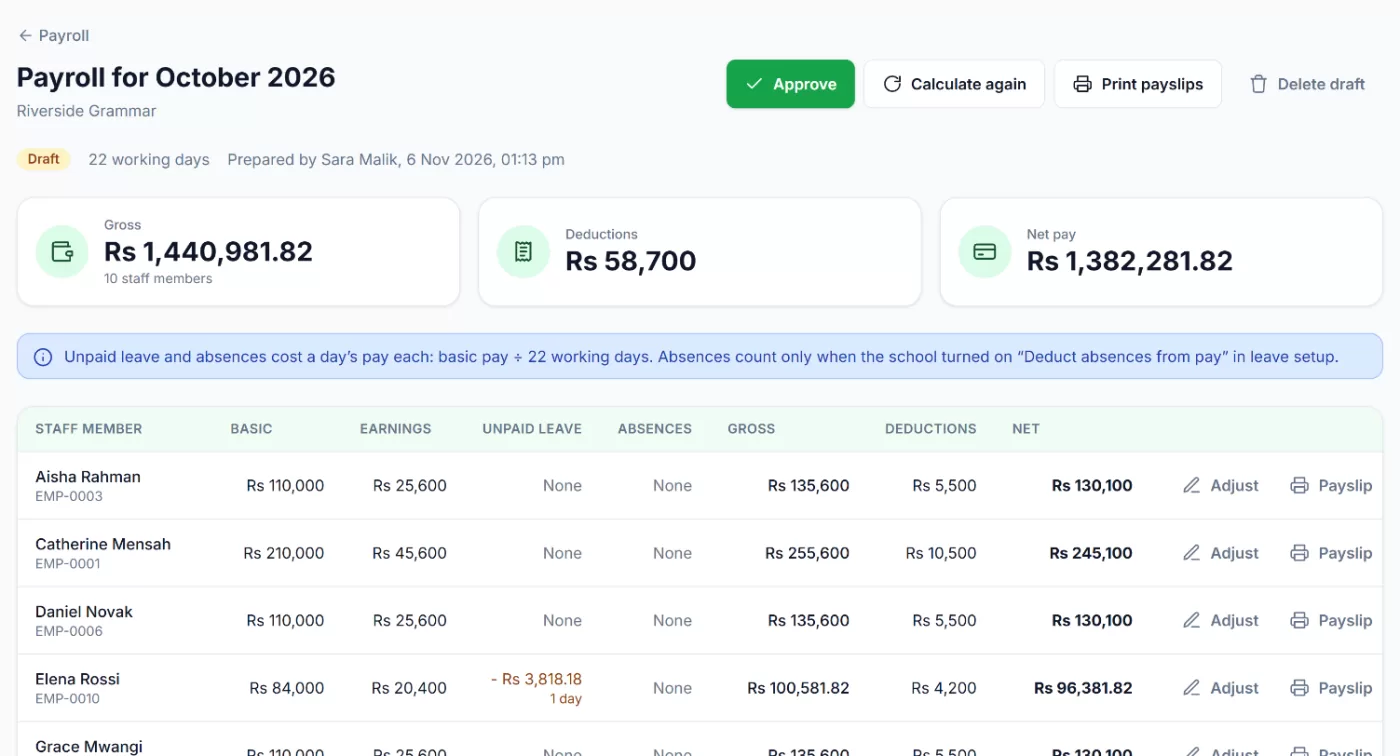
A draft payroll run with gross pay, deductions and net pay for each staff member.
Step 1: add salary components
Open Payroll and go to the Salary components tab. Each school has its own list. Select Add component and fill in:
Name, for example House allowance or Pension fund,
Type: Earning or Deduction,
Worked out as: Fixed amount per month, or Percent of basic.
A component that staff salaries use cannot be deleted. Turn it off instead, and new payroll leaves it out.
Step 2: set each staff member's salary
On the Salaries tab, find a person by name or employee number and select Set salary. Enter the Basic pay per month for a full month, tick the components that apply, and give the person an Own amount or Own percent where theirs differs from the school value. The dialog shows Net pay in a full month before you save. Someone who joins or leaves during a month is paid for the part of the month they worked, from the dates on their staff record.
Step 3: decide how leave and absences count
Unpaid leave always reduces pay: each working day of approved leave of an unpaid type costs a day's pay. Absences reduce pay only when the school turns on Deduct absences from pay in Leave setup, on the Days off and pay tab. Then a day marked absent in staff attendance costs a day's pay and a half day costs half, and approved leave is never counted twice. A day's pay is the basic pay divided by the month's working days, which are the days of the month minus the school's weekly days off. The guide to staff leave covers leave types and days off.
Step 4: prepare the month
Select Prepare payroll, choose the school and the month, and SkoolBro makes one line for each staff member with a salary who was employed that month. There is one payroll run per school and month, and preparing it needs access to the whole school, since it pays everyone there.
The run page shows each person's basic, earnings, unpaid leave, absences, gross, deductions and net, with totals and a line that explains how a day's pay is worked out. To add something for this month only, such as a bonus or an advance, select Adjust on the person's line, add the item and an optional Note on the payslip. These one-off items stay when you select Calculate again after changing a salary or approving late leave.
Here is an example from Lakeview Academy, a fictional school with Saturday and Sunday off. October 2026 has 22 working days. Mei Lin's basic pay is 44,000 in the school's currency, so a day's pay is 2,000. She gets a House allowance of 10% of basic (4,400) and a fixed Transport allowance of 2,500, and pays 5% of basic into a Pension fund (2,200). She took one day of unpaid leave. Her gross is 44,000 + 4,400 + 2,500 - 2,000 = 48,900, and her net is 48,900 - 2,200 = 46,700.
Step 5: approve
When the draft looks right, someone other than the person who prepared it selects Approve. Approval is refused when nobody is in the run, or when anyone's net pay would be below zero. Approving posts the month's salaries to the school's books in Accounts: the gross to Salaries, the net to Salaries payable, and the deductions to Payroll deductions payable, for whoever collects them.
If something is wrong before the money goes out, select Reopen and give a reason. The run goes back to draft, the entry in the books is reversed, and it needs approval again.
Step 6: record the payment
After paying staff, select Record payment and enter Paid on and Paid from, either Bank or Cash. The date cannot be in the future. This posts the payment to the books, and the run becomes final.
Each person in the run then gets the Payslip ready notice. It goes by email and in the app unless your school changes that under Automatic messages. It says the payslip for the month is ready and asks them to sign in, without the amount.
Payslips
Print payslips on the run page opens an A4 payslip for every person, which you can print or save as a PDF from the browser. You can also open one person's payslip from their line. A payslip shows the name, employee number, designation and department, working days and days paid, the basic for the days worked, each earning and deduction, one-off items marked "this month only", unpaid leave and absent days, total deductions, net pay, the note, and lines for "Prepared by" and "Received by".
Staff open My payslips and select View and print on a month. They see only their own payslips, and only from approved and paid payroll. If a login is not linked to a staff record, the page says so and asks them to contact HR or the school office.
What is not built yet
There are no tax tables or legal calculations: deductions are the components you set up. SkoolBro does not send money to staff bank accounts or make a bank payment file; recording the payment notes that it was paid. Loans repaid over several months, overtime by the hour and pay cuts for late arrival are not worked out, so use one-off items each month for these. Payslips are not attached to the email; staff sign in to see them.
Questions
Does SkoolBro work out income tax or pension contributions?
No. Payroll follows the components your school sets up. If staff pay tax or a fund contribution, add it as a deduction, as a fixed amount or a percent of basic pay, and give a person their own amount where it differs. SkoolBro has no tax tables, so check the amounts with whoever advises your school.
Can the person who prepared payroll also approve it?
No. The person who prepared or last calculated the run cannot approve it, and sees "You prepared this payroll. Someone else has to approve it." By default the School Admin and the Principal approve payroll.
What if we find a mistake after approving?
Until the payment is recorded, someone who can approve payroll can reopen it with a reason. It goes back to draft, the entry in the books is reversed, and it has to be approved again. Once the payment is recorded the run is final.
Is the amount in the payslip email?
No. The message only says that the payslip for the month is ready and asks the person to sign in. Messages are kept in the delivery log, so pay stays out of them.
When can staff see their payslip?
Under My payslips as soon as the payroll is approved. The "Payslip ready" notice goes out when the payment is recorded.
Each school sets its leave types, days per year and weekly days off. Staff ask for leave from their own login under My leave, and HR or the principal approves or rejects it. Approved days come off the balance, show as on leave in staff attendance, and the staff member gets a notice.
Staff attendance has its own entry under Human resources, next to Leave. The office marks each campus's staff for the day with optional check-in and check-out times, approved leave fills itself in, and a monthly summary counts each person's days. Staff do not check themselves in from their phones yet.
Each school has its own chart of accounts. Fee invoices, payments, fines, waivers, refunds and payroll post to the books by themselves, and the office records expenses with the payee and whether they were paid from cash or bank. Manual journal entries cover the rest, and the trial balance, income and expenditure, and balance sheet are ready to print.