Staff leave in SkoolBro: leave types, requests, approval and balances
Each school sets its leave types, days per year and weekly days off. Staff ask for leave from their own login under My leave, and HR or the principal approves or rejects it. Approved days come off the balance, show as on leave in staff attendance, and the staff member gets a notice.
· 5 min read
When leave is handled on paper, the balance often lives in someone's notebook and the register still shows the teacher as absent. In SkoolBro each school sets its leave types once and staff ask for leave from their own login. Once a second person approves it, SkoolBro updates the balance, the staff attendance and the next payroll.
Who does what
Every staff member has My leave under My work. HR and approvers also get Leave under Human resources, which opens Staff leave. By default the School Admin and the HR Manager set up leave and record it for anyone, and the School Admin, the Principal and the HR Manager approve it. Approving is marked sensitive, so SkoolBro asks for your password again when you have not confirmed it recently.
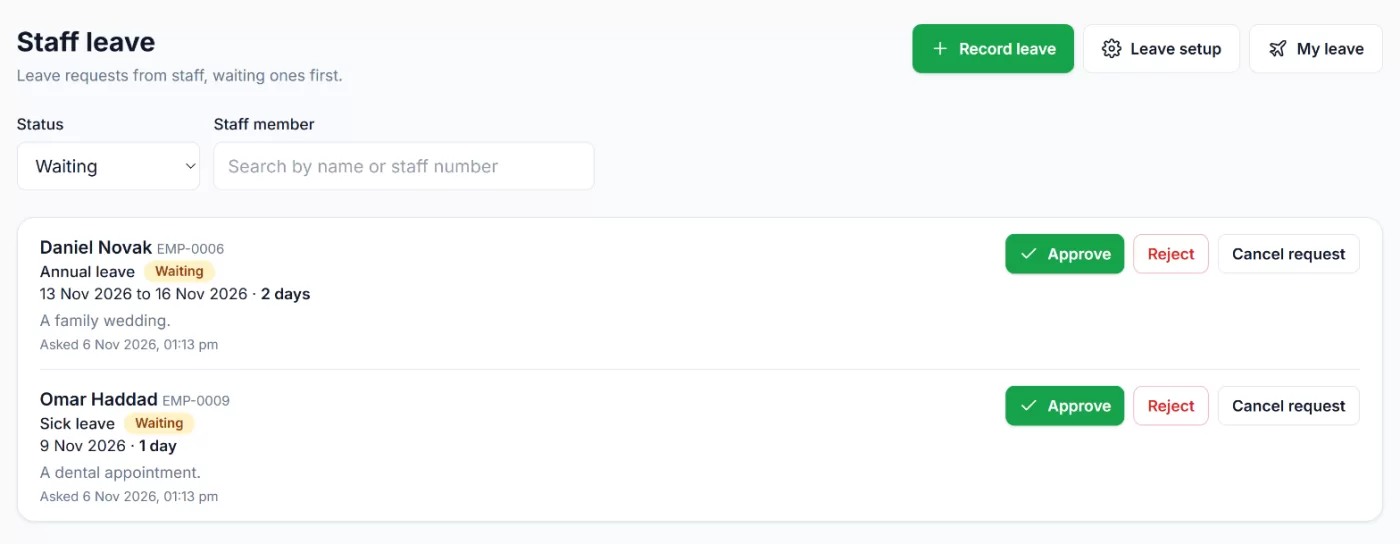
Staff leave, with the requests waiting for a decision.
Step 1: add your leave types
On Staff leave, open Leave setup and go to the Leave types tab. Select Add leave type and fill in:
Name, for example Casual leave or Sick leave,
Code, a short code such as CL,
Days per year, with half days allowed (7.5, for example), or empty for no limit,
Days that carry into next year, the most unused days that move to the next year's balance, or empty for none,
Paid leave, ticked or not. Unpaid leave reduces pay in payroll at a day's pay for each working day.
Each school in an organization has its own types. A type that requests already use cannot be deleted.
Step 2: set the weekly days off
On the Days off and pay tab, tap each day of the week to switch it between Working and Day off. Saturday and Sunday are days off unless you change them, and at least one day has to stay a working day. Leave days skip these days, and payroll uses them to count working days. The same tab holds Deduct absences from pay, which the payroll guide explains, and Staff can cancel their own approved leave before it starts, which is on unless you switch it off.
Step 3: check the balances
The Balances tab lists everyone at the school who has not left, with what is left of each leave type for the chosen year. Each person starts with the type's days per year, plus any days carried over from the year before. Select Edit on a person to change their entitlement for that year, for example for someone who joined in July or works part time. HR also sees this year's balances on each staff profile.
Step 4: staff ask for leave
On My leave, a staff member sees a card for each leave type with what they are entitled to, what they used, what is waiting and what is left. Request leave opens a short form: Leave type, First day, Last day, Half a day only for a single day, and a Reason for whoever approves it. Send request sends it for approval.
The form shows how many calendar days the dates cover and reminds the person that weekly days off are not counted. SkoolBro refuses a request when the type has too few days left, when the person already has leave on some of those days, or when every chosen day is a day off. While a request waits, the staff member can select Cancel request.
My leave needs the login to be linked to the person's staff record. If it is not, the page says so and asks them to contact HR or the school office. HR can also select Record leave on Staff leave to enter leave for someone, for example a teacher who phoned in sick.
Step 5: approve or reject
The people who approve leave at the staff member's campus get a New leave request notice in the app, with the name, the leave type and the dates; the reason stays in SkoolBro. Email for it can be switched on under Automatic messages.
Staff leave lists requests with waiting ones first, with filters for status, staff member and campus. Select Approve or Reject and add an optional Note, which the staff member sees. On your own request you see "You asked for this leave, so someone else decides it."
When leave is approved:
the days come off the person's balance for the year,
each working day in the range shows as On leave in staff attendance at the person's main campus, with the leave type and reason as the note, and days already marked are left as they were,
for an unpaid type, the next payroll takes off a day's pay for each of those days,
the staff member gets the Leave request decided notice by email and in the app, with your note.
A rejected request changes nothing except its status, and the staff member gets the same notice saying it was not approved.
When plans change
Approved leave can be cancelled with Cancel leave. HR can do it on Staff leave at any time and add a reason, which the staff member is told. A staff member can do it on My leave before the leave starts, unless the school switched that off. Either way the days go back to the balance and the On leave days come off staff attendance. Payroll that was already approved for those days stays as it is, so HR corrects it with a one-off addition if needed.
An example
Hillcrest School, a fictional school, gives teachers 10 days of Casual leave a year and has Saturday and Sunday off. Fatima Haddad asks for Casual leave from Thursday 3 December to Monday 7 December 2026 for a family wedding. The dates cover 5 calendar days, and with the weekend left out the request is for 3 days. Lars Jensen, the HR Manager, approves it with the note "Enjoy the wedding". Fatima gets a message that her Casual leave request for 3 Dec 2026 to 7 Dec 2026 was approved, her card shows 7 days left, and staff attendance shows her on leave on Thursday, Friday and Monday.
Where else leave shows
The At a glance page in Reports shows how many requests are waiting for a decision and who is on leave today, as the reports guide describes. If your school uses the AI administrator's morning summary, it can include a "Staff on leave" part, so the office knows which classes may need cover.
What is not built yet
Public holidays are not skipped; only the weekly days off are. Leave does not build up month by month. Approved leave can be cancelled but not shortened: to come back early, cancel it and ask again for the days taken. There is one approval step, without a chain of approvers.
Questions
How are leave days counted?
Every calendar day from the first day to the last, minus the school's weekly days off. A half day counts as 0.5. Public holidays are not skipped yet, so leave out a holiday when you choose the dates.
Can a staff member ask for more leave than they have left?
Not for a leave type with a yearly limit. SkoolBro refuses the request and says how many days are left, counting requests that are still waiting. A type with no limit, such as unpaid leave at many schools, takes any number of days.
Who can approve leave?
By default the School Admin, the Principal and the HR Manager. Never the person who asked: a staff member cannot approve their own request, and when HR records leave for someone, a different person has to decide it.
Does the leave year follow our academic year?
No. Balances run by calendar year. Leave that runs into a new year needs two requests, one for each year.
Is the staff member told about the decision?
Yes. The "Leave request decided" notice goes by email and in the app by default, with the approver's note if there is one. Your school can change the channels and the wording under Automatic messages.
Can approved leave be cancelled?
Yes. HR can cancel approved leave at any time, with a reason the staff member is told. A staff member can cancel their own approved leave before its first day, unless the school leaves that to HR. The days go back to the balance and come off staff attendance.
Do unused days carry over to next year?
When the leave type allows it. Set "Days that carry into next year" on the type, for example 5, and up to that many unused days are added to next year's balance.
Staff attendance has its own entry under Human resources, next to Leave. The office marks each campus's staff for the day with optional check-in and check-out times, approved leave fills itself in, and a monthly summary counts each person's days. Staff do not check themselves in from their phones yet.
Payroll starts from the salary components your school sets up and each staff member's salary. Each month you prepare a payroll run that takes off unpaid leave and, if you choose, absences. Someone else approves it, you record the payment, and each staff member gets a notice that their payslip is ready.
A role decides what someone can do and campus access decides where. You can change the 14 standard roles on every plan and create custom roles on Growth, Professional and Enterprise. Sensitive permissions ask for a fresh password or authentication code before a change goes through.