Staff attendance in SkoolBro: the day sheet, check-in times and the monthly summary
Staff attendance has its own entry under Human resources, next to Leave. The office marks each campus's staff for the day with optional check-in and check-out times, approved leave fills itself in, and a monthly summary counts each person's days. Staff do not check themselves in from their phones yet.
· 3 min read
Most schools know which students were absent today long before they know which teachers were. Staff attendance in SkoolBro gives the office one sheet per campus and day: who came in, who was late, who left at midday and who was on leave, with times when you want them. It sits under Human resources as Staff attendance, next to Leave, because approved leave fills it in.
Who records it
By default the School Admin and the HR Manager record and correct staff attendance. The Principal and the Vice Principal can open the same page and read it without changing anything. You can give these permissions to other roles, as the guide to custom roles explains.
A staff member appears on a campus's sheet once that campus is on their staff record. If the sheet is empty, check the staff profiles first.
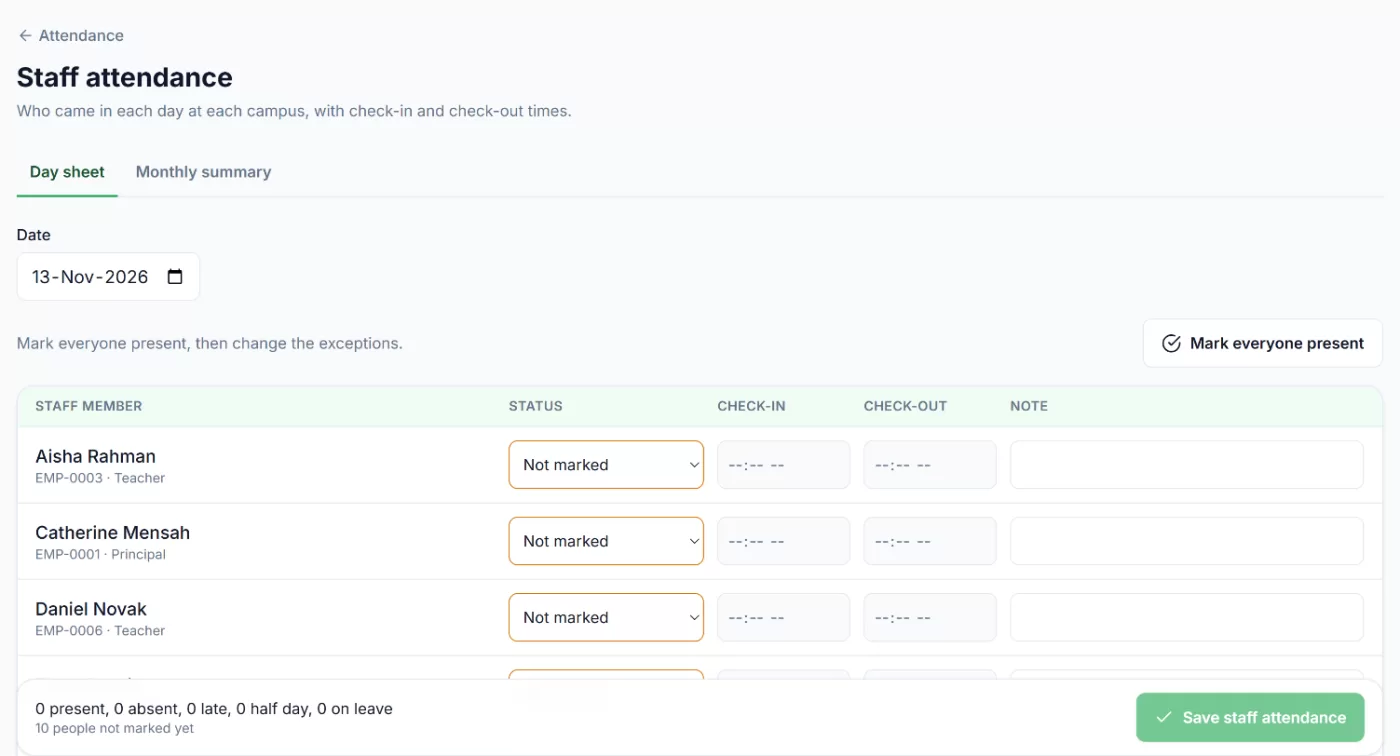
The staff day sheet, with status, check-in and check-out times.
Step 1: open the day sheet
Open Staff attendance, choose the school and campus if you have more than one, and pick the date. The Day sheet tab opens on today. You can open and correct any earlier day, but not a day that has not come yet.
Step 2: mark everyone present, then the exceptions
Select Mark everyone present, then change the people who were not. Each person has a Status: Present, Absent, Late, Half day or On leave. You can also type a Check-in and Check-out time and a Note, such as "Doctor's appointment". Check-out has to be after check-in.
In the bar with the save button, a line counts how many are present, absent, late, on a half day and on leave, and how many people are not marked yet. You can save with some people still unmarked and finish later. Select Save staff attendance, and each entry shows who recorded it.
An example
Northfield College, a fictional college, has a city campus and a riverside campus. Tomás Rivera, the HR Manager, opens the city campus sheet at 9:15. Sofia Petrova already shows On leave, because her request for the week was approved on Monday. Tomás selects Mark everyone present, changes Ngozi Eze to Late with a check-in of 08:40, marks Ravi Menon as Half day with a check-out of 12:30, and saves. The count line reads 21 present, 0 absent, 1 late, 1 half day, 1 on leave.
How leave shows
When leave is approved on Staff leave, SkoolBro marks each working day of it as On leave at the person's main campus, with the leave type and reason as the note. Weekly days off are skipped. Days that were already recorded stay as they were: if the office marked a teacher absent before their sick leave was approved, change that day to On leave yourself.
The monthly summary
The Monthly summary tab shows one row per staff member at the campus for the month you choose, with how many days they were present, absent, late, on a half day and on leave, and the days recorded in all. Absences stand out in red. Use the arrows to move between months.
Other places staff attendance shows
Reports: the At a glance page shows "Staff today" for people who can see staff attendance, as the reports guide describes.
Payroll: when the school turns on Deduct absences from pay in Leave setup, days marked absent cost a day's pay and half days cost half. Approved leave is never counted twice, and late days do not change pay. The payroll guide has the details.
About check-in
In SkoolBro today, check-in and check-out are times the office types into the day sheet. Staff do not check themselves in. There is no check-in from phones, no campus geofence and no link to fingerprint, face or card machines. Check-in from phones with a campus geofence is on our roadmap, and it is not built today.
What is not built yet
Besides self check-in, some other things are missing. Staff cannot see their own attendance in the app. The monthly summary has no CSV download or print page. Staff attendance needs a connection: student registers can be taken offline on a phone, but the staff sheet cannot.
Questions
Can staff check in from their own phones?
Not yet. Check-in from phones with a campus geofence is on our roadmap and is not built today. For now the office records each day, with check-in and check-out times typed in.
Does SkoolBro connect to fingerprint or card machines?
No. There is no link to attendance machines. If your school uses one, the office copies the times into the day sheet.
What happens when leave is approved?
Each working day of the leave shows as On leave at the person's main campus, with the leave type and reason as the note. Days the office already marked are left as they were.
Do absences reduce pay?
Only when the school turns on "Deduct absences from pay" in Leave setup. Then a day marked absent costs a day's pay and a half day costs half. Days marked late do not change pay.
Can someone who works at two campuses be marked at both?
A person has one entry per day. Once they are recorded at one campus, saving them at another campus on the same day is refused.
Each school sets its leave types, days per year and weekly days off. Staff ask for leave from their own login under My leave, and HR or the principal approves or rejects it. Approved days come off the balance, show as on leave in staff attendance, and the staff member gets a notice.
Payroll starts from the salary components your school sets up and each staff member's salary. Each month you prepare a payroll run that takes off unpaid leave and, if you choose, absences. Someone else approves it, you record the payment, and each staff member gets a notice that their payslip is ready.
The Reports page gathers counts and totals from each part of SkoolBro you can see, with attendance, fees and enrollment tabs and CSV downloads. Each exam has its own analysis by subject and section, and people who may use AI agents can ask one to explain what the numbers show.