
How SkoolBro keeps each institution's data safe
Separate records for every organization, access that fits each job, encryption for the most sensitive details and a log of every change.
Education administration
A role decides what someone can do and campus access decides where. You can change the 14 standard roles on every plan and create custom roles on Growth, Professional and Enterprise. Sensitive permissions ask for a fresh password or authentication code before a change goes through.

A school office works better when the accountant cannot change marks and a teacher cannot void a payment. In SkoolBro, a role decides what someone can do, and their campus access decides where they can do it. Every organization starts with 14 standard roles, and on the Growth plan and above you can add your own.
The AI assistant and the AI agents start with the Owner and School Admin only. You can add them to any other role.
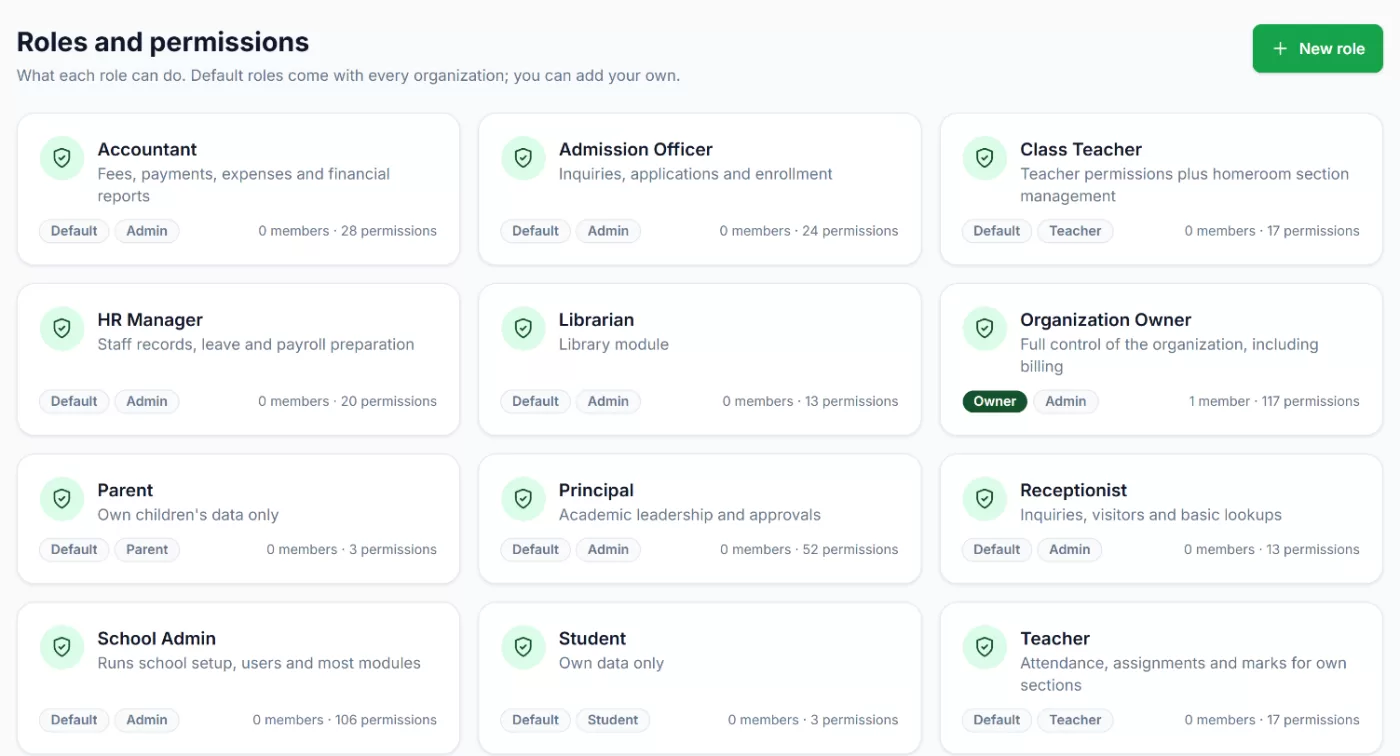
Open Settings, Roles. Each role shows a tag (Owner, Default or Custom), how many members have it and how many permissions it holds. Open a role to see its permissions grouped by area, such as Students, Admissions or Attendance, with Select all and Clear for each group. Tick or untick what you need and select Save changes. This works on every plan, for every standard role except Organization Owner. Standard roles cannot be deleted.
When a SkoolBro update adds a permission to a standard role, your copy of that role gets it once, and the activity log records the addition. A permission you removed from a standard role is not given back.
Select New role, then:
Custom roles come with the Growth, Professional and Enterprise plans, and the 14-day free trial runs on Growth. On Starter, the Roles page says that custom roles are not included in your plan, and you can still edit the standard roles.
Here is an example from Northgate Academy, a fictional academy. The director, Mr Farouk, wants an exams officer who enters and corrects marks for every class and publishes results, without seeing fees. He creates a role called Exams officer, starts from Teacher and adds "Enter or correct any marks and unlock papers" and "Publish and unpublish exam results". Both carry the Sensitive tag. He gives the role to Ms Ibarra and limits her access to the main campus.
Open Settings, Users, choose the person and tick their roles. One person can hold several. Then set their Access to all schools and campuses, or only to some of them, as running several schools and campuses explains. A few rules always apply:
Some permissions carry the Sensitive tag because they change who can do what, are hard to undo, or open private details. They include managing roles and members, archiving a school, campus, student or staff record, changing a student's status, correcting any marks, publishing results, voiding payments, approving waivers, refunds and concessions, approving leave and payroll, seeing ID numbers and health notes, inviting families to the portal and giving SkoolBro support access.
When you make a change that needs one of them, SkoolBro shows Confirm it is you and asks for your password, or for the code from your authenticator app with Use an authentication code instead. You are not asked again for 15 minutes. Every change is written to the activity log with who made it and when.
Organization owners must turn on two-factor authentication within 14 days of signing up: at each sign-in they type a 6-digit code from an authenticator app such as Google Authenticator or Microsoft Authenticator. Anyone else can turn it on under Account and security. SkoolBro gives 10 recovery codes to keep in case the phone is lost.
Roles apply in every school and campus a person can reach, so one login cannot be Principal at one school and Teacher at another. The narrowest access is one campus: you cannot limit an accountant to the fees of one grade, for example. A role cannot be given for a set period and end by itself on a date.
Growth, Professional and Enterprise. On Starter you can still change the permissions of the standard roles. The 14-day free trial runs on the Growth plan, so you can try custom roles there.
Yes, for every standard role except Organization Owner, which always has every permission. Standard roles cannot be deleted.
The change needs a sensitive permission. After you confirm with your password, or a code from your authenticator app, SkoolBro does not ask again for 15 minutes.
Yes. Tick every role they need on the Users page, for example Teacher and Librarian.
No. People can only give permissions they hold themselves, and nobody can change their own roles or access.
Separate records for every organization, access that fits each job, encryption for the most sensitive details and a log of every change.

Add schools and campuses under Settings, Schools and campuses, then give each staff member access to all of them or only to some. Users, roles, branding and automatic messages are shared by the organization, while academic years, fees, books of accounts and most rules belong to each school.

What happens after sign-up, how the Getting started list ticks itself off from your real records, and a day by day plan for your first week.