
How SkoolBro keeps each institution's data safe
Separate records for every organization, access that fits each job, encryption for the most sensitive details and a log of every change.
Education administration
Add schools and campuses under Settings, Schools and campuses, then give each staff member access to all of them or only to some. Users, roles, branding and automatic messages are shared by the organization, while academic years, fees, books of accounts and most rules belong to each school.

Many institutions have more than one building. A group may run a primary school with two campuses and a college across town, or an academy may open a second branch. In SkoolBro all of them sit in one account, called an organization. Staff sign in once, and each person sees only the schools and campuses their job covers.
The organization is your account, with its users, roles, plan, logo and colours. Inside it, a school is an institution with its own academic setup: a school, a college or an academy. A campus is a place where a school teaches, and every school has at least one. When you sign up, SkoolBro creates the organization, its first school and a Main Campus, so a single school in one building never needs to think about campuses.
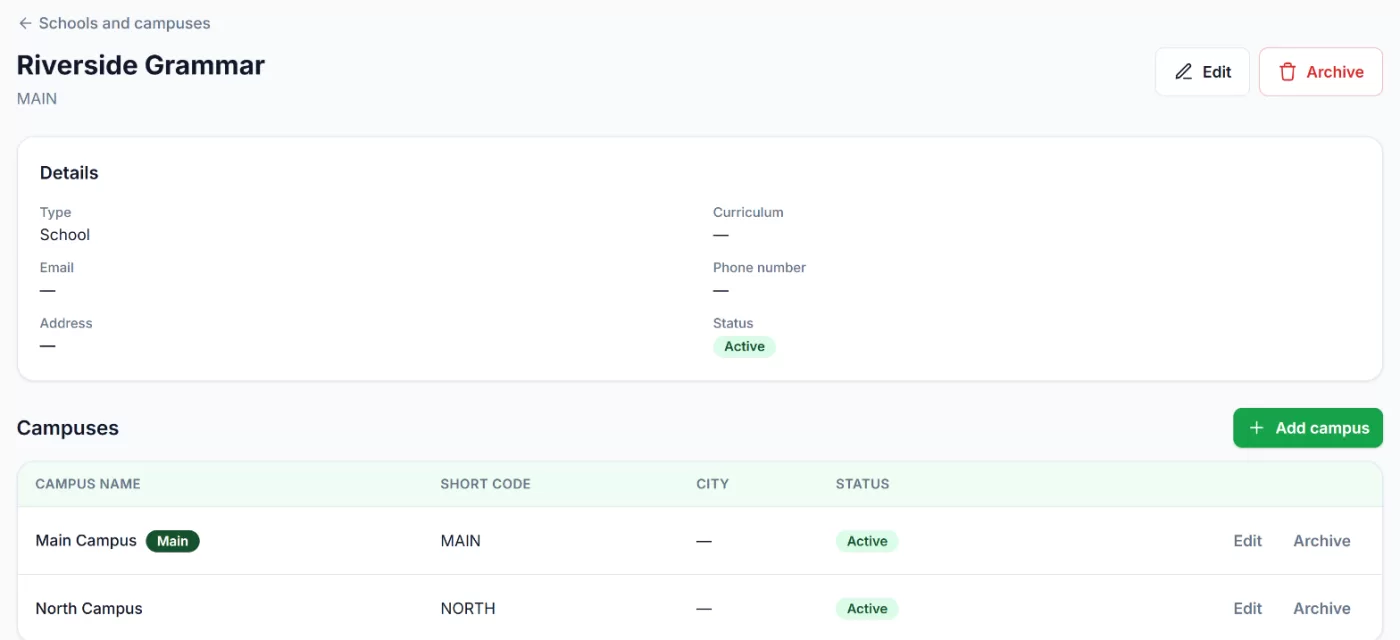
Open Settings, Schools and campuses and select Add school. Give it a name and a short code, choose the type (School, College or Academy), and add the curriculum, contact details, city and address if you like. A Main Campus is created with the school.
Open the school and select Add campus. A campus has a name, a short code, a city, a phone number and an address. The short code is what you write in the Campus column when you import students or staff from a spreadsheet. Make this the main campus moves the main mark to another campus. Archiving a school or a campus is a sensitive action, so SkoolBro asks for your password first.
Your plan sets how many you can add: Starter allows 1 school and 2 campuses, Growth 3 and 10, Professional 10 and 40, and Enterprise has no limit. The pricing page has the full table.
These are set once for the whole organization:
Each school keeps its own academic years and terms, grades and subjects, grading scales, fee structures and fee settings, including late fines and the bank details printed on vouchers. It has its own number series for admissions, invoices and receipts, its own books of accounts and its own online payment account. Leave types, payroll, library rules, transport routes, inventory items and certificate templates are per school too. So are the rules for attendance, homework and quizzes, which lets a college keep a register for every lesson while the primary school takes one register a day.
Each campus holds its own students, classes, attendance, timetables, invoices and payments. Staff have a home school and work at one or more campuses, one of them their main campus.
Open Settings, Users. When you add a member, invite someone or edit a member, choose their roles and their Access:
A person limited to some campuses does not see the others anywhere. Lists, search, reports and the delivery log leave them out, and a link to a record at another campus opens nothing. Teachers see only the students of the classes they teach. A manager who is limited to some campuses can give other people only the access they have themselves. More on roles is in roles and permissions in SkoolBro.
No single switch changes every page at once. Pages that work on one school at a time, such as Classes and Accounts, show a School select at the top when you can see more than one, and a Campus select where it matters. The choice stays in the page address, so going back or reloading keeps it. Lists such as Students, Staff and Admissions have All schools and All campuses filters, and Reports can show every school together or one at a time.
If you belong to more than one organization, for example as a teacher in one and the owner of another, the organization name in the top bar becomes a menu for switching between them.
An announcement can go to the whole organization, one school, a campus, a grade or a section. Only people who look after the whole organization can send to everyone or to several schools at once. Others send to their own schools, one school at a time.
Cedar Hill Education Group is fictional. It runs Cedar Hill Primary, with a North and a South campus, and Cedar Hill College on one campus. The owner, Mrs Achieng, sees everything. Mr Mensah, the college principal, has the Principal role with access to the college only, so the primary school's classes and fees never appear for him. Ms Kowalski is the accountant for the North campus and sees its invoices and payments, and none from the South campus. A family with one child at North and one at the college is linked to one guardian record, and the parent sees both children with one portal login.
A login has the same roles in every school it can reach, so one person cannot be Principal at one school and Teacher at another with one login. The currency, time zone and the words the app uses are set once for the organization, so schools in countries with different currencies need separate organizations. Accounts statements are per school, and there is no combined statement for the whole group.
No. One organization holds every school and each school's campuses. Your plan sets how many: Starter 1 school and 2 campuses, Growth 3 and 10, Professional 10 and 40, and Enterprise unlimited.
Yes. Under Settings, Users, set their Access to Only selected schools or campuses and tick their school. The other schools then do not appear for them anywhere in the app.
Not with one login. A person's roles apply in every school and campus they can reach.
No. The currency, time zone and default language are set once for the organization. Schools that need another currency would use a separate organization.
Separate records for every organization, access that fits each job, encryption for the most sensitive details and a log of every change.

A role decides what someone can do and campus access decides where. You can change the 14 standard roles on every plan and create custom roles on Growth, Professional and Enterprise. Sensitive permissions ask for a fresh password or authentication code before a change goes through.

Where a college office loses time between departments, what to decide before you set up software, and how programs and groups map onto SkoolBro.