
Getting started in SkoolBro: a first week guide for new institutions
What happens after sign-up, how the Getting started list ticks itself off from your real records, and a day by day plan for your first week.
Learner and student management
Upload a CSV or Excel file of students, staff or opening fee balances. SkoolBro checks every row and shows a preview with new records, updates and rows with problems before anything is saved. Fix the problems in your file and upload it again; matching rows are updated, never added twice.

Most schools already keep their students and staff in a spreadsheet, or can export one from their old system. Typing 600 students in one by one takes days. In SkoolBro you upload the file instead, see every row checked before anything is saved, and import only what is ready.
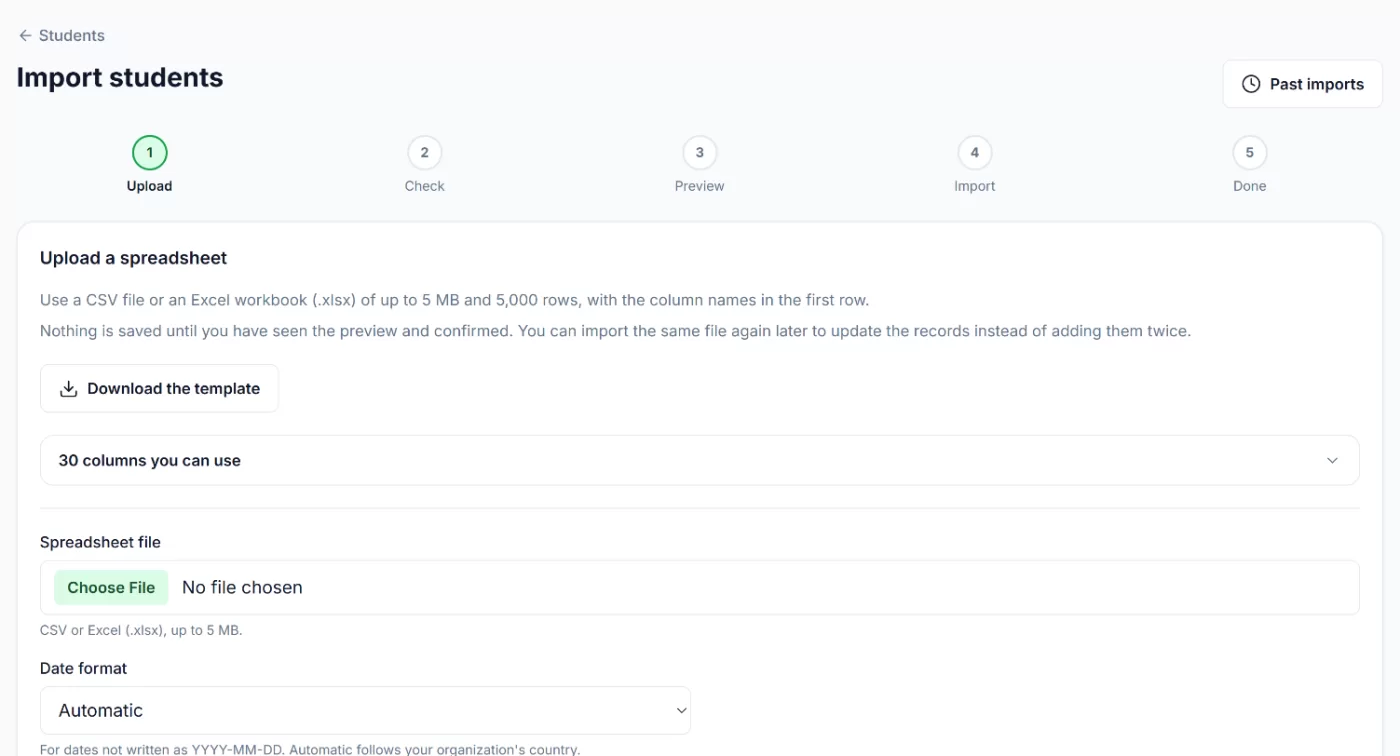
Select Download the template to get the column names with one example row. Your own file works too: SkoolBro matches column names without minding capitals, spaces or underscores, and knows common names such as "Adm no", "DOB", "Surname" or "Father name". The page lists every column it accepts, with the required ones marked.
On Upload a spreadsheet, choose the file, the Campus for rows without one and the Date format, then select Upload and check. SkoolBro checks the rows in batches while you watch the count go up. Nothing is saved yet, so keep the page open until the check finishes.
The preview shows how many rows are New records, how many are Updates to records already in SkoolBro, and how many are With problems. Columns SkoolBro did not recognise are listed and left out. For students, the preview also shows how many active students you will have after the import against your plan's limit; rows past the limit are not imported.
Under Rows with problems, each row is listed by its row number in your spreadsheet, with the column and what is wrong, for example "Use male, female or other." or "Use a date such as 2015-03-12." Download problems (CSV) gives you the same list as a file.
The preview cannot edit a row, so the fixes happen in your spreadsheet. Then you have two ways to go on. You can correct the file and select Upload another file before importing anything. Or you can import the valid rows now, fix the rest and upload the whole file again later. Rows already imported match their records, so they count as updates and nothing is added twice.
Select Import with the number of rows ready, for example "Import 598 rows". Rows are saved in small batches. Keep the page open; if you leave, the import pauses and you can continue it from Past imports. At the end SkoolBro shows how many rows were Added, Updated, Unchanged and Failed. Cancelling keeps the rows already saved.
Students are matched by admission number in the same school, then by birth registration number, then by first name, last name and date of birth in the same school. Staff are matched by employee number, then national ID, then email. A match is updated with the cells that are filled in, and an empty cell never clears a value. Guardians are matched by phone number or ID number and linked, so brothers and sisters who share a parent are connected. An import never changes the details of a guardian who is already on file. If two rows in one file match the same record, the later row is marked as a problem.
For staff, departments and designations that do not exist yet are added when the person importing can manage the staff structure.
Harbour View School is a fictional school moving from its old system. The office exports 612 students with the columns "Adm No", "Student Name", "Sex", "DOB", "Father Name" and "Father Phone", with dates written as 31/12/2015. The office manager, Mr Tanaka, uploads it with Day first as the date format. The preview shows 598 new records and 14 rows with problems: 9 have no gender and 5 have a phone number that is not valid. He imports the 598, fixes the 14 rows in the spreadsheet and uploads the whole file again. This time 14 rows are added and the 598 already in come out as unchanged.
A file larger than 5 MB or 5,000 rows has to be split. SkoolBro does not keep the file itself. The rows are stored encrypted with the import and deleted 30 days after the upload, and Past imports shows the imports of the last 30 days. The records the import saved stay. Birth registration and national ID numbers are imported only by people allowed to see them; for anyone else those columns are skipped with a warning.
The import does not place students in classes; use Add students on each class page afterwards. It does not create logins: give staff a login with Give app access and invite families with Invite to the portal, as the family portal guide explains. A row holds two guardians at most. Photos, documents, marks, attendance, timetables and library books cannot be imported from a spreadsheet.
No. Students are matched by admission number, then birth registration number, then name and date of birth in the same school. Staff are matched by employee number, then national ID, then email. A match is updated instead of added.
No. The import creates the student records. Place them in classes afterwards with Add students on each class page.
They are skipped, and the valid rows can still be imported. Download the problems as a CSV, fix those rows in your file and upload it again.
No. The import creates staff records. Give each person a login with Give app access on their staff page, or invite them from Settings, Users.
Only people allowed to see ID numbers. For anyone else, those columns are skipped with a warning, and the rest of the row is imported.
What happens after sign-up, how the Getting started list ticks itself off from your real records, and a day by day plan for your first week.

What a student record should hold at each stage, who should see which parts, and how to handle siblings, documents and sensitive details.
Why SkoolBro keeps applicants and enrolled students in separate lists, and how an application becomes a student in one step.