
How to improve parent communication in your school
Channels, timing and tone for school notices and for conversations about one child, plus the habits that cause most parent complaints.
School management
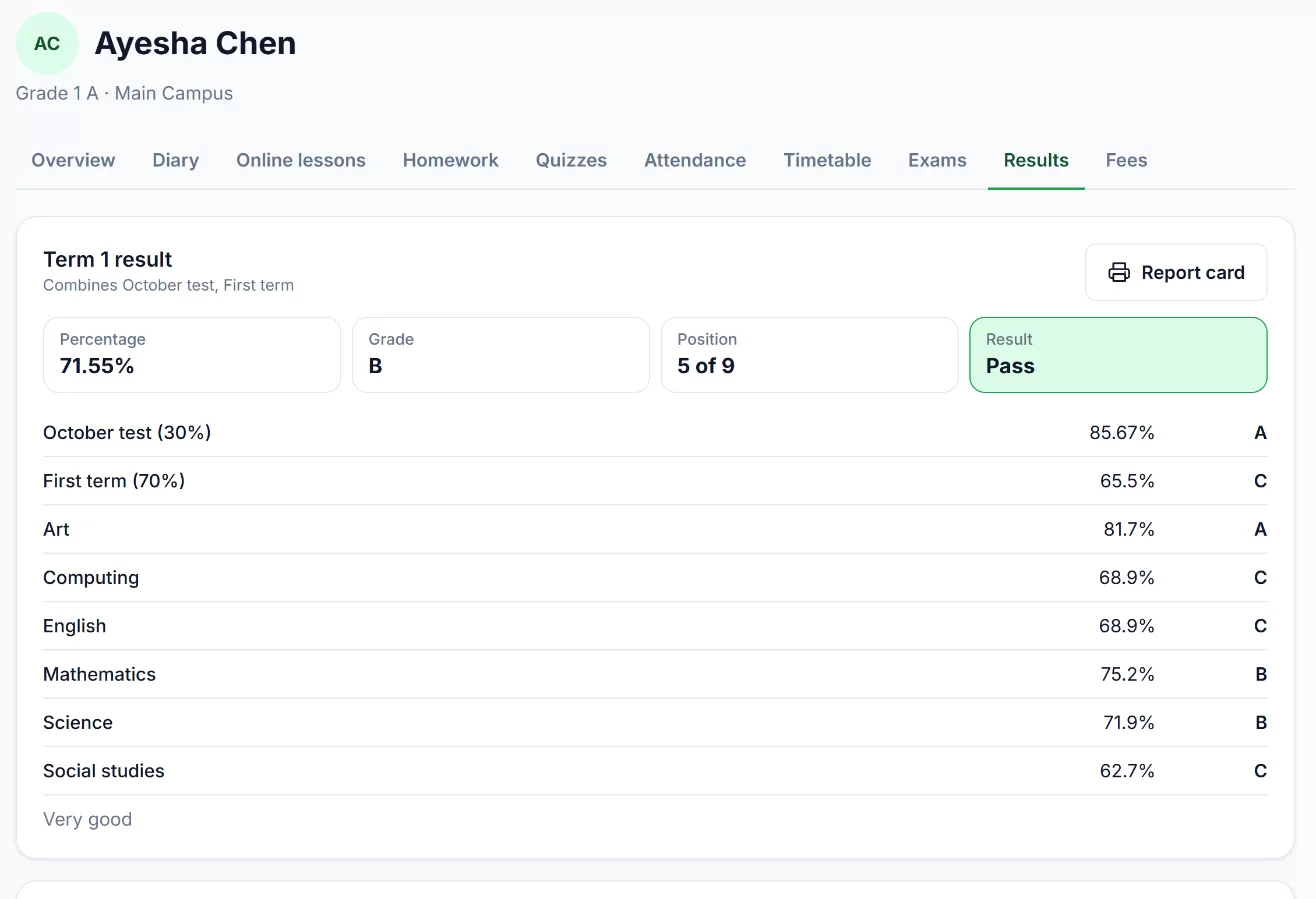
The school invites a guardian or a student with Invite to the portal. A parent then sees one card per child, with tabs for the diary, online lessons, homework, quizzes, attendance, timetable, exams, results and fees, plus notifications and messages to the class teacher.

Parents ask the school office the same questions every week: was my son in class today, what is the homework, how much do we still owe. The family portal answers them from the school's own records. A parent signs in once and sees each of their children, and a student with their own login sees only their own records.
The portal is for logins whose only roles are Parent or Student. When they sign in at app.skoolbro.com, SkoolBro takes them straight to the portal, and they never see the staff screens. A parent's portal lists only the children the school linked to that guardian, even when the children study at different campuses of the same organization. Notes meant for staff, ID numbers and health notes never appear, and results show only once the school publishes the exam.
Open the guardian's page, or the student's page, and select Invite to the portal. SkoolBro tells you where the invitation goes before you select Send invitation: the email address on the record, or the phone number when there is no email. The guardian gets a link to create a login with their name and a password, or to sign in if they already have a SkoolBro account. Once they accept, the login is linked and the record shows Has a portal login.
After signing in, a parent sees Home with one card per child: the photo, class, campus, attendance this month, fees due and the latest result.
Notifications collects what the school sends in the app: absences, new invoices, payments, results, announcements and replies. Mark all as read clears the count. The school decides which of these also go by email, as automatic messages to families explains.
Messages holds conversations about a child. A family member selects Message the class teacher on the Overview, or New message in Messages, and the message goes to the child's class teacher. The child's other guardians with a portal login are part of the same conversation. Staff can also start a conversation about a student. An open conversation looks for new replies every 15 seconds, so a reply can take a moment to appear.
When a school switches the school assistant on under AI agents, and its plan includes AI credits, families also see Ask the school assistant on the child's page and at the top of Messages. If the school allows it, general questions such as term dates or school hours get an answer at once from what the school wrote for the assistant. A reply about the child's own records is checked and sent by a person at the school, and anything about safety goes straight to the school's leaders. Each family login can ask up to 5 questions a day. The school assistant guide covers the rules.
Most parents open the portal on a phone, so it has its own simple layout with the school's name and logo at the top. On a phone, a bar at the bottom of the screen has Home, Messages and Notifications, each with its unread count.
Lakeside Academy is a fictional school with two campuses. Mrs Grace Owusu has two children there: Kofi in Grade 2 at the North Campus and Ama in Grade 7 at the Main Campus. The office invites her by email from her guardian page, and because she is linked to both children, her one login shows two cards. On Monday evening she reads Ama's diary, hands in a photo of Kofi's reading log and prints the term voucher to pay at the bank. When Ama gets her own student login later in the year, she sees only her own records.
Notifications show inside SkoolBro only; alerts pushed to the phone are not built. Families cannot change the details the school keeps about them or their child, and there is no form for reporting an absence ahead of time, so they write to the class teacher in Messages. Messages by SMS and WhatsApp wait for a connected provider. Students do not choose their own electives in the portal; the office records them.
No. One login shows every child the school linked to that guardian, also when the children are at different campuses of the same organization. With one child, the portal opens that child's page straight away.
Yes. The office selects Invite to the portal on the student's page. A student's login shows only that student's own records.
Notes meant for staff, ID numbers and health notes. Results appear only after the school publishes the exam.
When the school has online payments set up, unpaid invoices have a Pay now button. Otherwise the Fees tab shows the school's bank details and a voucher the family can print.
Yes, with a separate family login. The staff login keeps the staff app for work.
Channels, timing and tone for school notices and for conversations about one child, plus the habits that cause most parent complaints.

Tick "Families hand in work online" when you post homework. Families hand in text, photos or PDFs in the portal, and the subject's teacher sees who handed in, who is late and who is missing, then checks each piece of work with marks and a comment or sends it back.

Connect your own merchant account under Fee setup, and families get a Pay now button on open invoices. The money goes straight to you, and SkoolBro records it once the provider confirms.