
How to improve parent communication in your school
Channels, timing and tone for school notices and for conversations about one child, plus the habits that cause most parent complaints.
Education technology
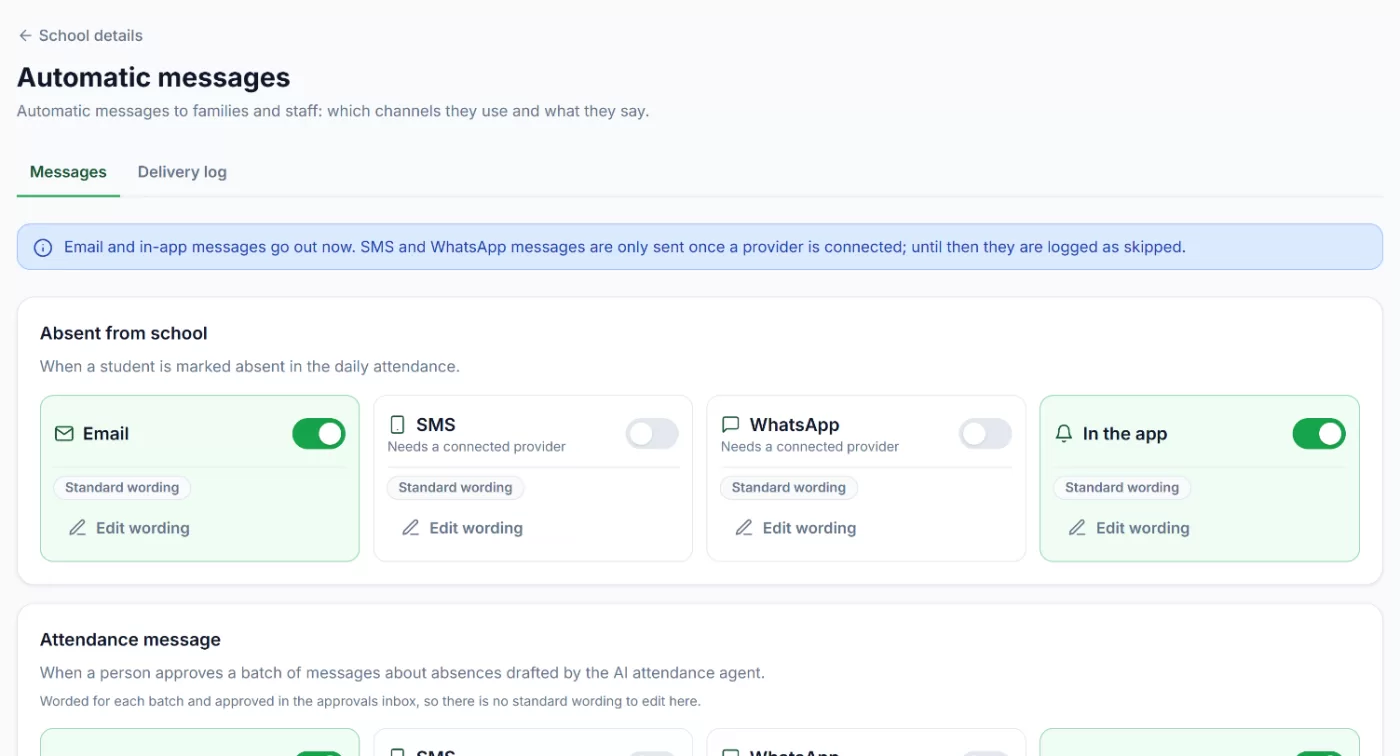
Under Settings, Automatic messages you switch email, SMS, WhatsApp and in-app delivery on or off for each message, and change the wording with placeholders. The delivery log shows what went out to whom. Email and in-app messages go out today; SMS and WhatsApp wait for a connected provider.

Some messages should reach families without anyone at the school having to remember them: the absence notice, the new invoice, the receipt for a payment. In SkoolBro these go out by themselves when the record changes. One settings page decides which of them are on, which channels they use and what they say.
In the menu, open Settings, Automatic messages. The page is also linked from School details, in the Rules in each area card. It has two tabs: Messages, with one card for each message, and Delivery log.
To families, about one student:
Staff get two: Leave request decided and Payslip ready. The payslip message never contains the amount.
Three messages are written for each batch by an AI agent and go out only after a person approves them in Messages to approve: Fee reminder, Attendance message and Admission follow-up. On this page you choose only their channels. The Announcements card sets the channels a new announcement starts with, and the person writing it can still change them.
Each card has four switches: Email, SMS, WhatsApp and In the app. Most messages start with email and in the app switched on. As you change switches, a bar at the bottom counts the changes not saved, with Undo and Save changes.
Who receives a family message depends on the guardian records. Guardians of the student with Receives messages and notices ticked get it by email when they have an email address, and in the app when they have a family portal login. A family without a portal login still gets the email.
Each channel of a message has its own wording, marked Standard wording until you change it and Your wording after. Select Edit wording to open it. An email has a subject line as well as the message, so you can write a fuller email and keep the SMS for the same event short.
Placeholders fill in the real details when the message goes out. Tap one under Placeholders to add it where the cursor is. Depending on the message, they include {student_name}, {school_name}, {date}, {amount}, {invoice_number}, {receipt_number}, {due_date} and {exam_name}. {school_name} is the student's own school, so one wording works for every school in the organization. A placeholder SkoolBro does not know is left out, and the editor says which one.
Preview shows the message with example values. For SMS, a counter under the text shows the characters and how many SMS parts the message takes: 160 characters a part, or 70 for text in a script such as Arabic or Hindi. Select Save wording to keep it. Use the standard wording removes yours and goes back to SkoolBro's.
Here is an example from Westbrook International School, a fictional school. The standard absence email says: "{student_name} was marked absent at {school_name} on {date}. If this is a mistake, please contact the school." The office manager, Ms Lindqvist, wants parents to call before 10 am, so she writes: "{student_name} was not in class at {school_name} on {date}. If you did not know, please call the office before 10 am on 555 0142." The preview fills in an example name and date, and she saves it.
The Delivery log tab lists every automatic message with its channel, the email address or phone number it went to, when it was created and sent, and its status: Waiting, Sent, Failed or Skipped. Filter by status, channel or message, or search for an email address or phone number when a parent says they heard nothing. The log does not show whether a parent opened an email.
People limited to some schools or campuses see only the messages about their own schools and campuses.
Email and in-app messages go out today. SMS and WhatsApp messages are sent only once a provider is connected, and no provider is connected today. You can still switch them on; those messages then show in the log as Skipped.
These messages go out from every school in the organization, so only people who look after the whole organization can change the switches and the wording. By default that is the owner and School Admins with access to all schools and campuses. Anyone else with the permission sees the page read-only, with See wording on each channel. The delivery log is open to School Admins and Principals by default. Both permissions can be added to other roles, as roles and permissions explains.
No SMS or WhatsApp provider is connected. The wording is the same for every school in the organization, in one language. Fee reminders come only from the AI fee collection agent and need a person's approval; there is no plain scheduled reminder. Families get no automatic notice when the class diary is posted.
No provider is connected today. You can switch SMS and WhatsApp on, and those messages show in the delivery log as Skipped. Email and in-app messages go out.
No. The switches and the wording are the same for every school in the organization. The {school_name} placeholder fills in the student's own school, so one wording reads right everywhere.
The guardians of the student who have Receives messages and notices ticked. They get it by email when they have an email address, and in the app when they have a family portal login.
The delivery log shows whether SkoolBro sent each message, with the time. It does not show whether a parent opened an email.
Channels, timing and tone for school notices and for conversations about one child, plus the habits that cause most parent complaints.

The school invites a guardian or a student with Invite to the portal. A parent then sees one card per child, with tabs for the diary, online lessons, homework, quizzes, attendance, timetable, exams, results and fees, plus notifications and messages to the class teacher.
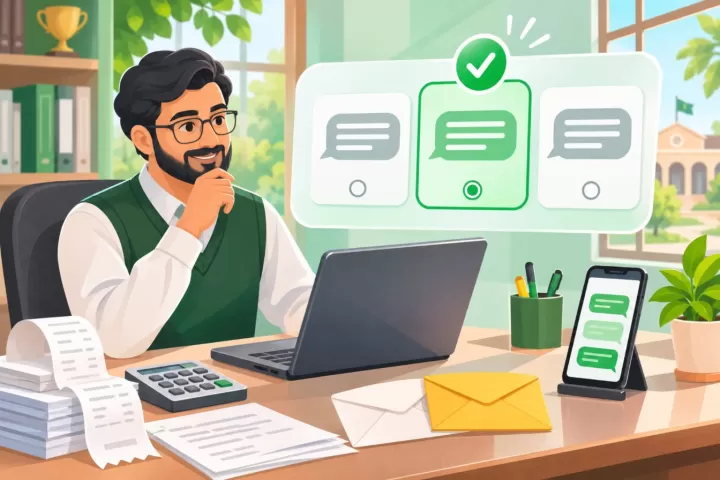
Once a week the AI fee collection agent picks the families with overdue fees and drafts one polite reminder. SkoolBro fills in each child's amount, invoices and due date, and nothing goes out until someone with permission checks the batch and approves it.