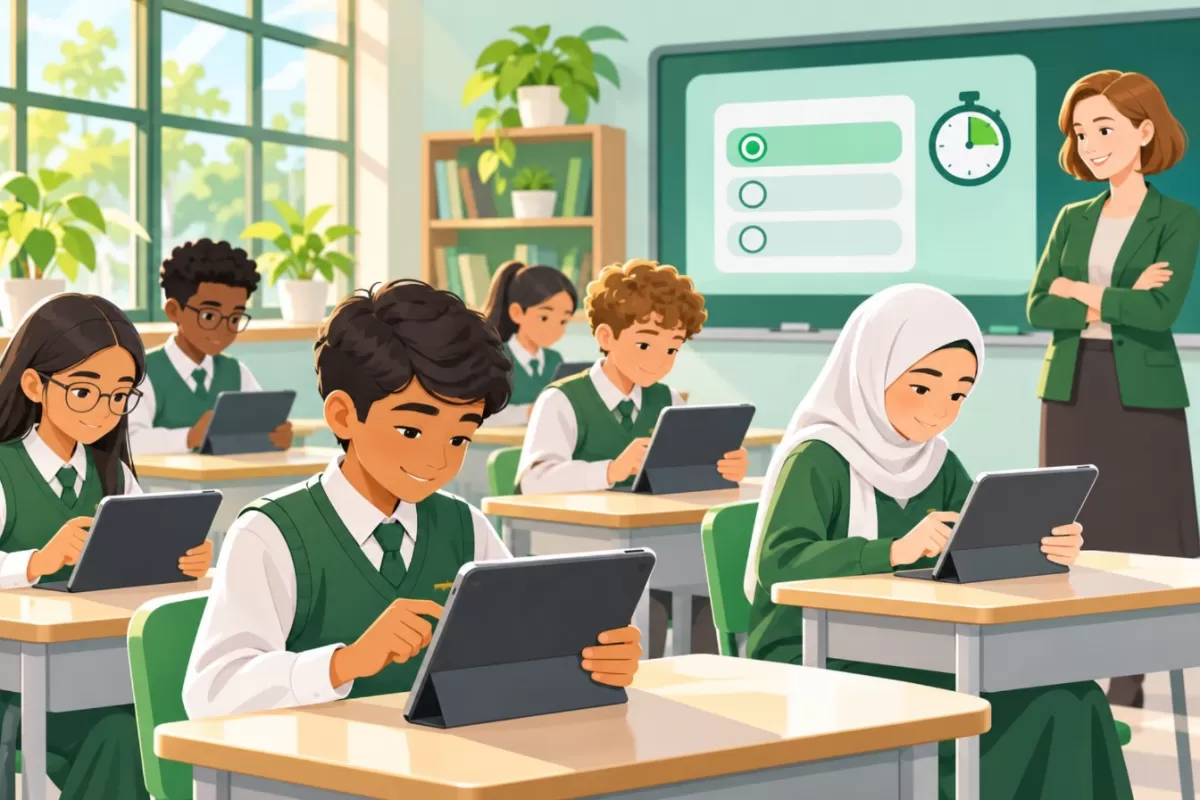
Teachers set quizzes per subject with multiple choice and typed answers, opening and closing times, a time limit and up to five attempts. Students take them in the family portal, choices are marked at once, typed answers wait for the teacher, and the results show by student and by question.
· 4 min read
A short quiz at the end of a topic tells a teacher who understood it, and a student wants to know the score the same day. On paper that means printing, collecting and marking every sheet. In SkoolBro a teacher sets the quiz once for a class, students take it in the family portal, and the multiple choice answers are marked as soon as they hand in.
Step 1: set your school's rules
Open Classes and go to the Homework and quizzes tab. There you choose:
whether teachers can set online quizzes,
who takes them: students from their own login, parents, or both (young children often use a parent's phone),
how many attempts a new quiz allows, and when it shows the right answers (teachers can change both for each quiz),
whether a student's score is their best attempt or their last one,
whether families see scores.
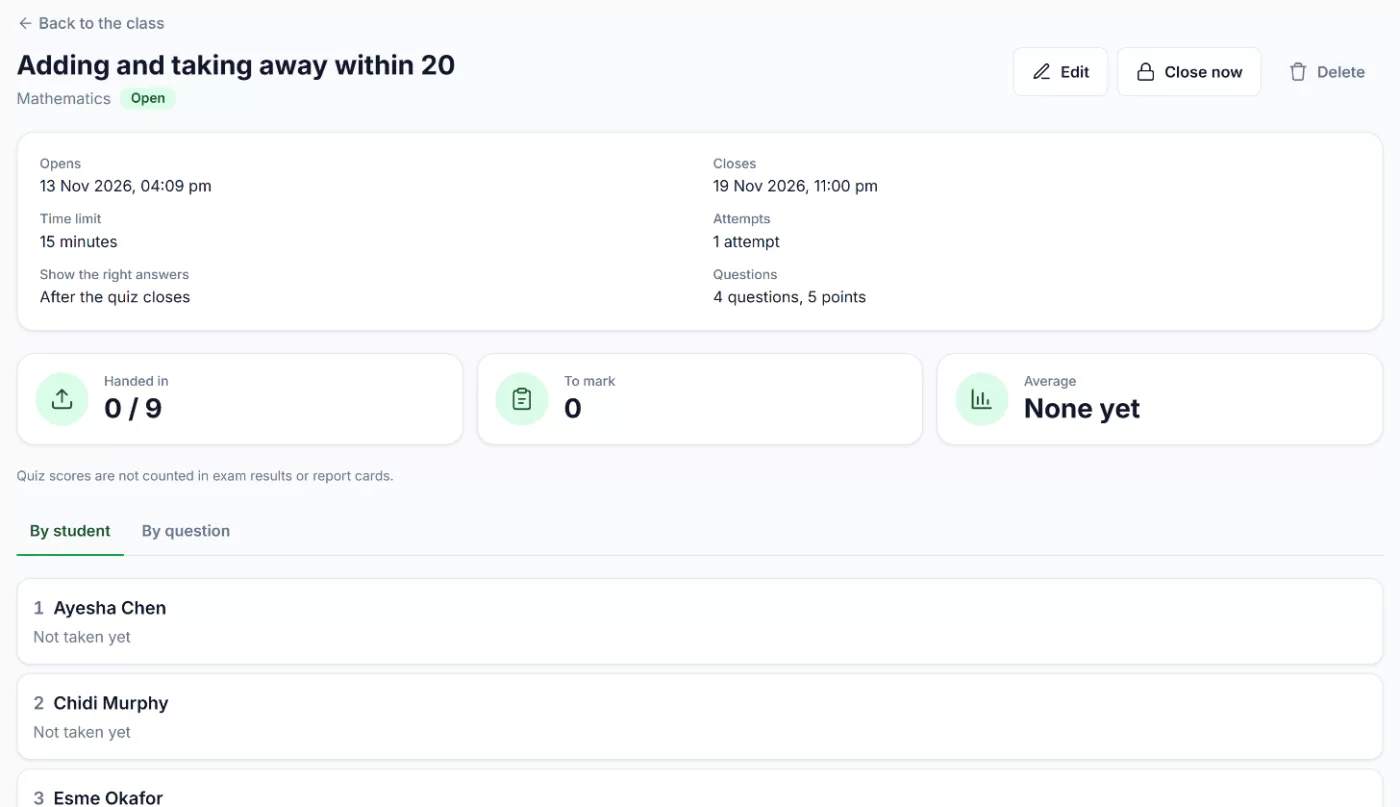
An open quiz: its times, limits and who has handed it in.
Step 2: write the quiz
On the class's Quizzes tab, select New quiz. Choose the subject and give the quiz a title and instructions. Then set when it runs:
Opens and Closes: leave Opens empty to open it when you publish, and Closes empty to keep it open until you close it.
Time limit in minutes, or none.
Attempts, from 1 to 5.
Show the right answers after handing in, after the quiz closes, or never.
Mix up the order of the questions, so students sitting side by side see them in a different order.
Add the questions. A multiple choice question has 2 to 6 answers; choose the circle next to the right one. A typed answer question has an optional model answer that you see when you mark. Each question has its points and an optional explanation, which students see with the right answer.
Select Save draft to come back later, or Save and publish. Publishing checks that every multiple choice question has its right answer and that the closing time is still ahead. Families of the students who take the subject get a notice in the app; email for it can be switched on under notification settings.
Here is an example from Hillview College, a fictional college. Mr Mensah sets a Physics quiz for Group 11 A: ten multiple choice questions and one typed answer, 20 minutes, two attempts, closing Friday at 5 PM, answers shown after the quiz closes.
Step 3: students take the quiz
In the family portal, the child's Quizzes tab lists open quizzes first, then those coming up, then closed ones. Start the quiz begins an attempt. Answers are saved as the student goes, so a dropped connection loses little, and a countdown shows the time left. Hand in asks first and says how many questions have no answer. When the time limit runs out, or the quiz closes, the answers saved so far are handed in.
After handing in, the student sees the score, unless the school keeps scores back. The right answers and explanations show when the quiz allows it.
Step 4: results and marking
Open the quiz from the Quizzes tab. You see how many handed in, how many typed answers wait to be marked, and the class average. By student lists every student who takes the subject with their score and attempts. By question shows how many got each multiple choice question right, which tells you which idea to go over again. To mark typed answers, open a student's attempt, give each typed answer its points and select Save marks.
Once students have started a quiz, its questions are locked so every score means the same thing. The title, instructions and times can still change, and Close now ends the quiz early.
Using an AI quiz draft
The AI teaching assistant drafts a multiple choice quiz with an answer key when a teacher asks for one. On the draft, Use as online quiz opens a new quiz for one of your classes with the questions, the right answers and the reasons filled in. Check every question and answer before you publish, since an AI draft can be wrong.
Questions are text only, without pictures. There is no question bank shared between classes, no negative marking and no test paper with sections, so full mock tests are still best run the way you run them today, with the marks entered as an exam. Quiz scores are not added into exam results or report cards. For homework that families hand in with photos or PDFs, see handing in homework online.
Questions
What kinds of questions can a quiz have?
Multiple choice with 2 to 6 answers and one right answer, marked at once, and typed answers that the teacher marks. Each question has its own points and an optional explanation.
Can a student get more time by changing the phone's clock?
No. The time limit is kept by SkoolBro's server. When it runs out, the answers saved so far are handed in.
When do students see the right answers?
Each quiz says: after handing in, after the quiz closes, or never. Until then the right answers stay on the server and are not sent to the phone.
Do quiz scores count in exam results?
Not yet. Quiz scores show on the quiz and in the family portal, and are not added into exam results or report cards.
Can the AI write the quiz?
The AI teaching assistant drafts a multiple choice quiz with an answer key on request. "Use as online quiz" opens the quiz editor with those questions filled in, and nothing is saved until the teacher checks and saves it.
Tick "Families hand in work online" when you post homework. Families hand in text, photos or PDFs in the portal, and the subject's teacher sees who handed in, who is late and who is missing, then checks each piece of work with marks and a comment or sends it back.
The Lessons tab keeps notes, files and video or live class links per class and subject. Families see upcoming live classes first and join from the portal. SkoolBro links to your videos and meetings and does not host them.