
How to simplify school fee collection: a guide for bursars and accounts offices
Fee heads and structures, vouchers and receipts, concessions that need a second approval, opening balances and a month-end routine for the person who runs school fees.
School management
Add vehicles with their seats and drivers, then routes with stops in order, times and fees. Put each student on a route from a stop, both ways or one way. SkoolBro adds a transport line to the monthly invoice and shows the route, times and driver in the family portal.

In many schools the transport office keeps its own lists: which child gets on at which stop, who has paid for the bus this month, and the driver's number written on a card. Parents call the office to ask the pickup time, and the accountant adds the transport fee to each invoice by hand. In SkoolBro the vehicles, routes and stops live next to the student records, the fee goes onto the monthly invoice by itself, and families see the details in the portal.
Transport is in the menu under Operations. Every staff member can open it and see the routes. The School Admin and Transport Manager roles add vehicles and routes and put students on them. In the riders list, a guardian's name and phone show only to staff who are allowed to see guardians.
Open Transport, go to the Vehicles tab and select Add vehicle. Fill in:
A vehicle that is off cannot be chosen for a route. A vehicle that routes use cannot be deleted, so choose another vehicle for those routes first.
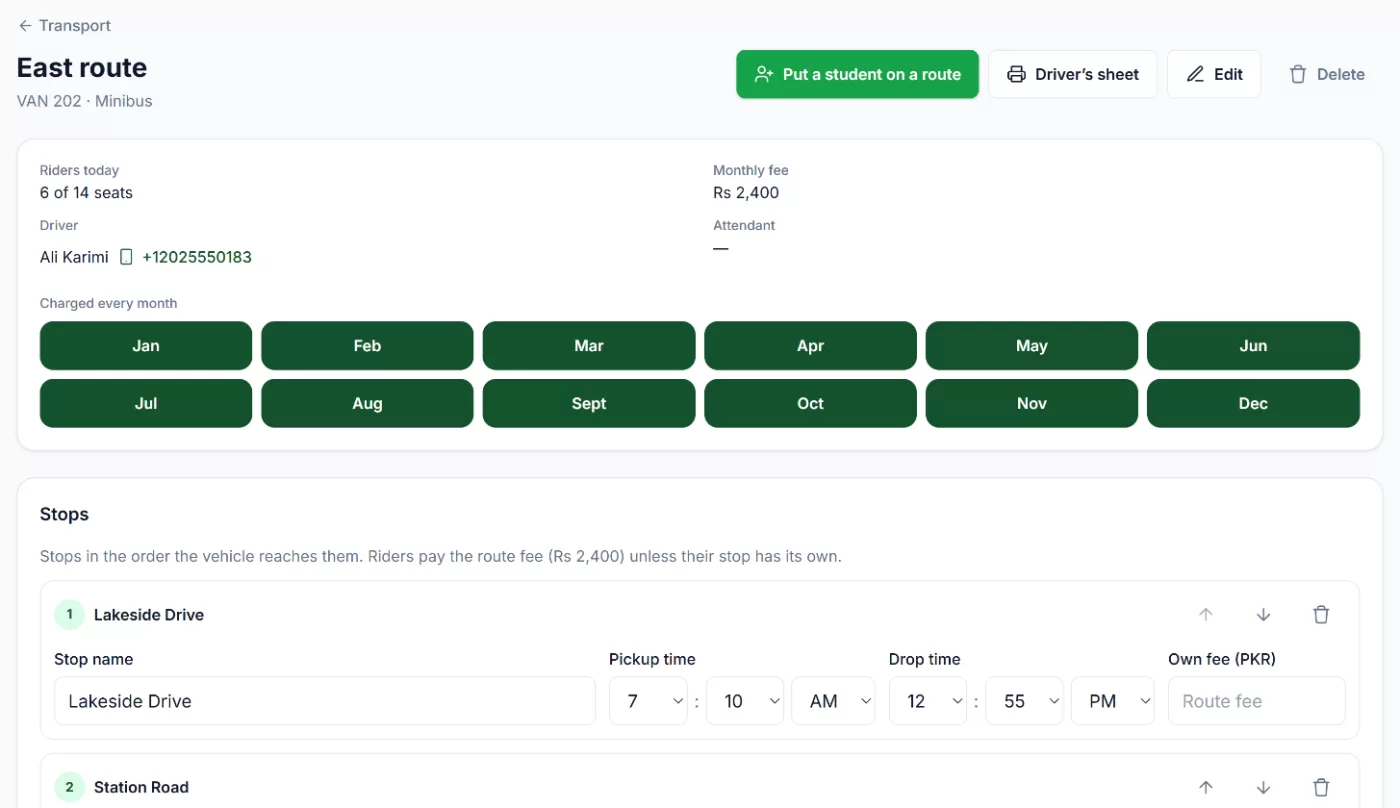
On the Routes tab, select Add route. Give it a Route name such as North route, choose the Vehicle and type the Monthly fee. The vehicle's seats limit how many students the route takes.
Under Billing months, tap a month to charge it or skip it, for example during a long break. All twelve on means the fee is charged every month.
A route that students have used cannot be deleted. Turn it off instead: it takes no new students, and the students who used it stay in the records.
Once the route is saved, open it and add the stops in the order the vehicle reaches them. Each stop has a Stop name, a Pickup time, a Drop time and an optional Own fee. Leave the fee empty and riders at that stop pay the route's fee. A farther stop can cost more. Use the up and down buttons to change the order, then select Save stops.
Select Put a student on a route on the Transport page, or on the Transport tab of a student's profile. Choose the route (the list shows how many seats are taken today), the stop, the start date and how the student uses it: Both ways, Pickup only or Drop only.
Only active students can be put on a route. If the student already uses a route, that one ends the day before the new one starts. When the vehicle is full, SkoolBro refuses and says so. When a student stops using transport, select End transport and choose the last day they ride. When a student leaves the school or graduates, their transport ends by itself on the leaving date.
When the office uses Generate invoices in Fees for a month, SkoolBro adds a line for each rider, for example "Transport: North route (Green Park)". The line uses the stop's own fee, or the route's fee, and only in the route's billing months.
Two settings decide the rest:
Invoices are generated once per student and month, so a student put on a route after that month's invoices were made does not get the line added. For that month, add a one-off invoice in Fees.
Lakeview International School, a fictional school, runs a North route with Bus 2, which has 40 seats. The route fee is 60 a month in the school's currency, and the last stop, Green Park, has its own fee of 75. The route is not charged in July and August.
Mr Haddad, the transport manager, puts Amara on the route from Green Park, both ways. Her brother Tomás uses the same stop, pickup only, because their mother collects him after football. When the office generates September's invoices, both children's invoices have the line "Transport: North route (Green Park)" for 75. Tomás pays the same as his sister, because the fee depends only on the stop.
The route page lists the riders by stop for any date you choose. Staff who can see guardians can tap a guardian's phone to call. Driver's sheet opens a page for printing, with each stop, the students who get on there, which way they ride, a column to tick who got on and, for staff who can see guardians, a guardian to call. Print a fresh sheet when riders change.
On the child's page in the family portal, the School transport card shows the route, the stop, the pickup and drop times that apply, the vehicle, and the driver and attendant with their phone numbers. The transport line also appears on the family's invoices. More on what families see is in the family portal guide.
School leaders see routes in use, riders today and seats on the Reports page, in the school at a glance.
SkoolBro does not track vehicles live or show them on a map, and it does not take attendance on the bus. It sends no message when the bus leaves or runs late. There are no fuel or maintenance records for vehicles, and no route planning.
Only when transport is billed under a fee head. In Fees, Setup, Settings, choose a head such as Transport under Transport fees. A concession on that head, or on all heads, then lowers the transport line too. Without a head, transport is charged in full.
Choose Pickup only when you put the student on the route. The family then sees only the pickup time. The fee stays the same as for both ways: the stop's own fee, or the route's fee.
Putting the student on the new route ends the old one the day before. By default the month's invoice has one transport line, for the route the student used last in that month. A school that charges by the days used gets a line for each route, for its own days.
When a student is withdrawn, transferred or graduates, their place on the route ends on their leaving date. The seat is free again and no transport fee is charged after that day.
No. SkoolBro does not track vehicles. Families see the route, the stop, the times, the vehicle and the names and phone numbers of the driver and attendant.
Yes. The seat check counts riders from every campus. Staff who look after one campus see only that campus's riders.
Fee heads and structures, vouchers and receipts, concessions that need a second approval, opening balances and a month-end routine for the person who runs school fees.

The school invites a guardian or a student with Invite to the portal. A parent then sees one card per child, with tabs for the diary, online lessons, homework, quizzes, attendance, timetable, exams, results and fees, plus notifications and messages to the class teacher.

The Reports page gathers counts and totals from each part of SkoolBro you can see, with attendance, fees and enrollment tabs and CSV downloads. Each exam has its own analysis by subject and section, and people who may use AI agents can ask one to explain what the numbers show.