Draft lesson plans, practice sets and quizzes with the AI teaching assistant
Teachers and instructors type a topic, a class or level and a length, and the AI teaching assistant drafts a lesson plan, a practice set or a quiz. The draft is theirs alone, ready to copy, print, use as homework or open as an online quiz, and nothing reaches students until the teacher posts it.
· 5 min read
Planning a lesson or writing practice questions from scratch takes an evening that many teachers do not have. The AI teaching assistant writes a first draft from a topic you type, and you check it, change it and decide how to use it. You can type any class, level or subject, so a primary teacher, a college lecturer and a trainer on a short course can all use it.
Step 1: give teachers access
By default only the owner and School Admins can use AI. To give teachers the assistant, an administrator opens Roles and adds the permission "Ask the AI teacher and instructor assistant to draft lesson plans, practice sets and quizzes for you" to the Teacher or Class Teacher role, or to the role you use for instructors. The guide to roles and permissions shows how. There is no switch for this agent: anyone with the permission can use it while your plan has AI credits.
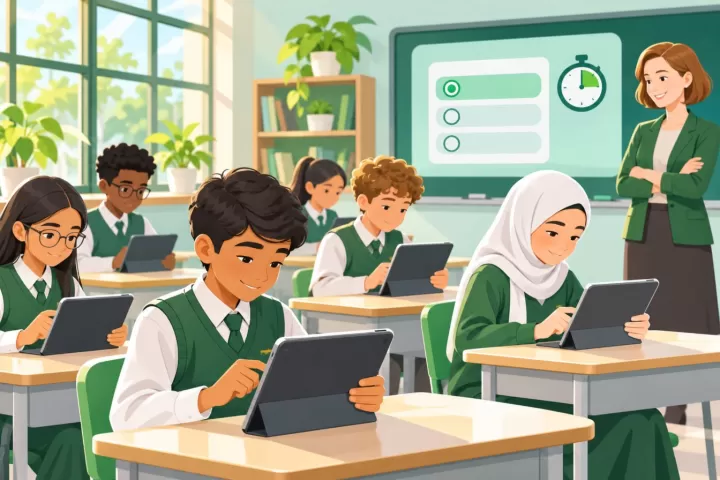
The AI teaching assistant drafts a lesson plan, practice set or quiz from a topic you type.
Step 2: ask for a draft
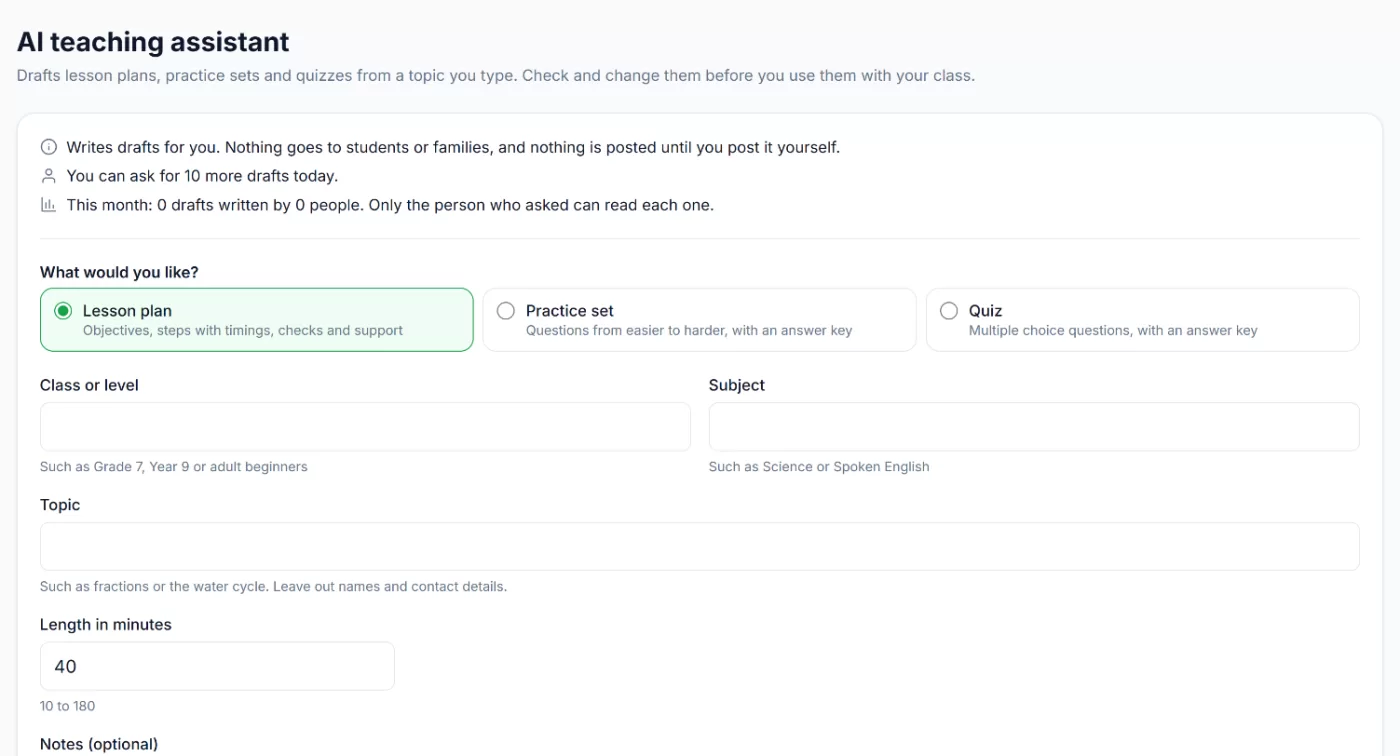
Open Teaching assistant in the AI group of the sidebar. Under What would you like?, choose a Lesson plan (10 to 180 minutes), a Practice set (3 to 20 questions with an answer key) or a Quiz (3 to 20 multiple choice questions with an answer key).
Under Class and subject, pick one of the classes you teach. The AI gets only the grade and the subject, never the section, the campus or your name. For a course that is not on your timetable, choose Another class or course, typed below and type the Class or level (such as Year 9 or adult beginners) and the Subject. Then type the Topic, set the length, add Notes (optional) such as a curriculum or a group activity, and select Write the draft.
SkoolBro first checks what you typed. An email address, a phone or ID number, or the full name of a student, parent or staff member at your school is refused, with a note on what to leave out. Names such as Marie Curie are fine.
Step 3: check the draft
A lesson plan comes with Objectives, What you need, Steps and timings, Check understanding, Practice or homework and Support and stretch, and SkoolBro tells you when the steps do not add up to the length you asked for. A practice set has instructions, questions and an answer key. A quiz has questions with options A to D, the right letter and a short reason. When the AI gives a letter that is not one of the options, SkoolBro shows "No answer was written for this one".
The AI can get a fact wrong, pitch a question at the wrong level or write a question with two right answers, so the page reminds you to check every part. It is asked to suit the level, stay neutral and inclusive, give no political or religious opinions, use metric units and use made-up first names in examples.
Step 4: use it
Copy puts the whole draft on your clipboard.
Print gives a lesson plan on one sheet, or a worksheet with lines for the learner's name and the date, with the answer key on a page of its own that you can leave out.
Use as homework, on a practice set, a quiz or a lesson plan with a practice part, opens a class's homework form with the title (such as "Quiz: The water cycle") and the questions filled in, without the answers. Nothing is posted until you choose a due date and select Post homework.
Use as online quiz, on a quiz, opens a new online quiz for one of your classes with the questions, the right answers and the reasons filled in. You set the times, the time limit and the attempts, then choose Save draft or Save and publish. Nothing is saved until you do.
A draft belongs to the person who asked for it. Yours are listed under Your drafts, each with its own page where you can Delete it. Nobody else can open them, managers included. People who manage AI agents see how many drafts were written this month and by how many people, never who wrote what or the topics. Deleting a draft also removes the AI's text from SkoolBro's record of the run.
What reaches the AI model
Only the request: what to write, the topic, the grade or level, the subject, the length and your notes, with your organization's, schools' and campuses' names replaced wherever they appear. No student, parent or staff record is read or sent. The assistant uses Google's Gemini, and the privacy policy explains how the data is handled.
An example
Ms Ferreira teaches science at Lakeview School, a fictional school. She asks for a 10 question quiz on the water cycle for Grade 6 B, with a note to include a question on rain gauges, and selects Use as online quiz. In the quiz editor she rewrites one question where two options both looked right, sets it to close on Friday at 5 PM with two attempts, and publishes it. At Northfield Training Centre, also fictional, an instructor types "Level 2 electrical installation" as the level, asks for a 60 minute lesson plan on safe isolation and prints it for the workshop.
Limits and credits
Each draft uses one AI credit. By default each person can ask for ten drafts a day, and the page shows how many are left. AI needs the Growth plan or above; the Starter plan has no AI credits.
Summing up exam results
The teaching assistant reads no marks. To see how a class did in an exam, ask the AI examination assistant, which sums up the marks entered for the classes you may see. It is described with the other agents in what an AI workforce means for an education institution.
What it does not do
It does not read student records or marks, so it cannot tailor a draft to one student.
It never posts homework or publishes a quiz. You do that yourself.
Drafts cannot go into an exam paper, since exams in SkoolBro have papers and marks, not questions.
Only a quiz draft opens as an online quiz, and online quiz questions are text only, with no shared question bank.
Drafts have no language setting.
Questions
Does the AI see my students or their marks?
No. It reads no records. The AI gets only what you typed: the kind of draft, the topic, the grade or level, the subject, the length and your notes. Text with an email address, a long number or the name of someone at your school is refused before anything is sent.
Who can see my drafts?
Only you. People who manage AI agents see how many drafts were written this month and by how many people, never who wrote what or about which topic.
Can I turn an AI quiz into an online quiz for my class?
Yes. On a quiz draft, Use as online quiz opens the quiz editor for one of your classes with the questions, the right answers and the reasons filled in. Nothing is saved until you check it and save it.
Why do our teachers not see the assistant?
By default only the owner and School Admins have AI access. An administrator gives teachers the assistant by adding its permission to their role on the Roles screen.
Does it follow our curriculum?
Only when you name one in the notes, such as a curriculum, an exam board or a textbook. SkoolBro has no built-in country curriculum.
Teachers set quizzes per subject with multiple choice and typed answers, opening and closing times, a time limit and up to five attempts. Students take them in the family portal, choices are marked at once, typed answers wait for the teacher, and the results show by student and by question.
Tick "Families hand in work online" when you post homework. Families hand in text, photos or PDFs in the portal, and the subject's teacher sees who handed in, who is late and who is missing, then checks each piece of work with marks and a comment or sends it back.
A training centre manager's guide to AI: the questions an assistant answers from your records today, the work that stays with people, and the AI agents that prepare routine work.